Community guide
ETS2 Photo Mode and Screenshot Location Guide
Use ETS2 photo mode, take cleaner screenshots, and know where to look for Steam and in-game screenshot files.
UpdatedJul 4, 2026
Read6 min
LevelBeginner
ByETS2Hub
Quick answer
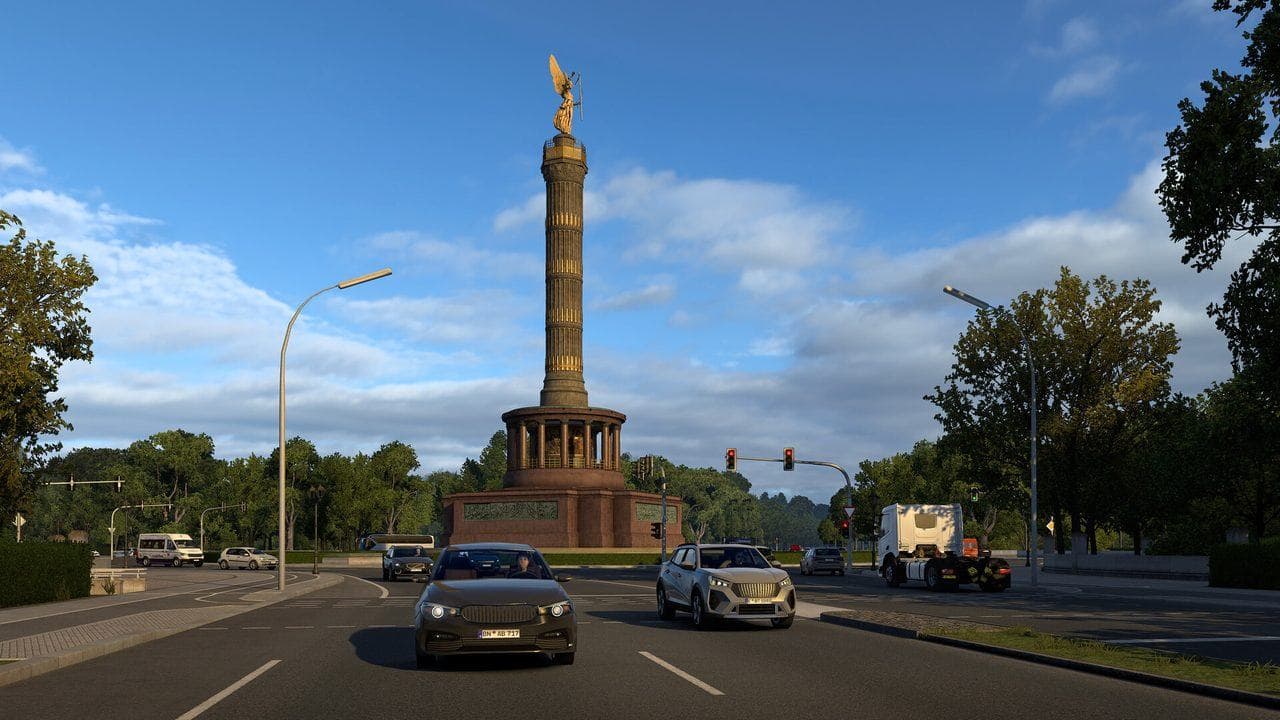
Use ETS2 photo mode or Steam screenshots when you want a clean picture of your truck, route, or delivery. Steam screenshots are managed through Steam, while in-game photo or gallery features may use ETS2's own profile or screenshot locations depending on how you captured them. Check both Steam's screenshot manager and the ETS2 user folder if you cannot find an image.
ETS2 screenshots are useful for sharing trucks, documenting bugs, remembering routes, and making your profile feel personal. The easiest beginner habit is to use photo mode for composition and Steam screenshots for quick captures.
If you wanted screenshots because you cannot walk around the truck, read Can You Walk or Exit the Truck in ETS2?.
Good Screenshot Workflow
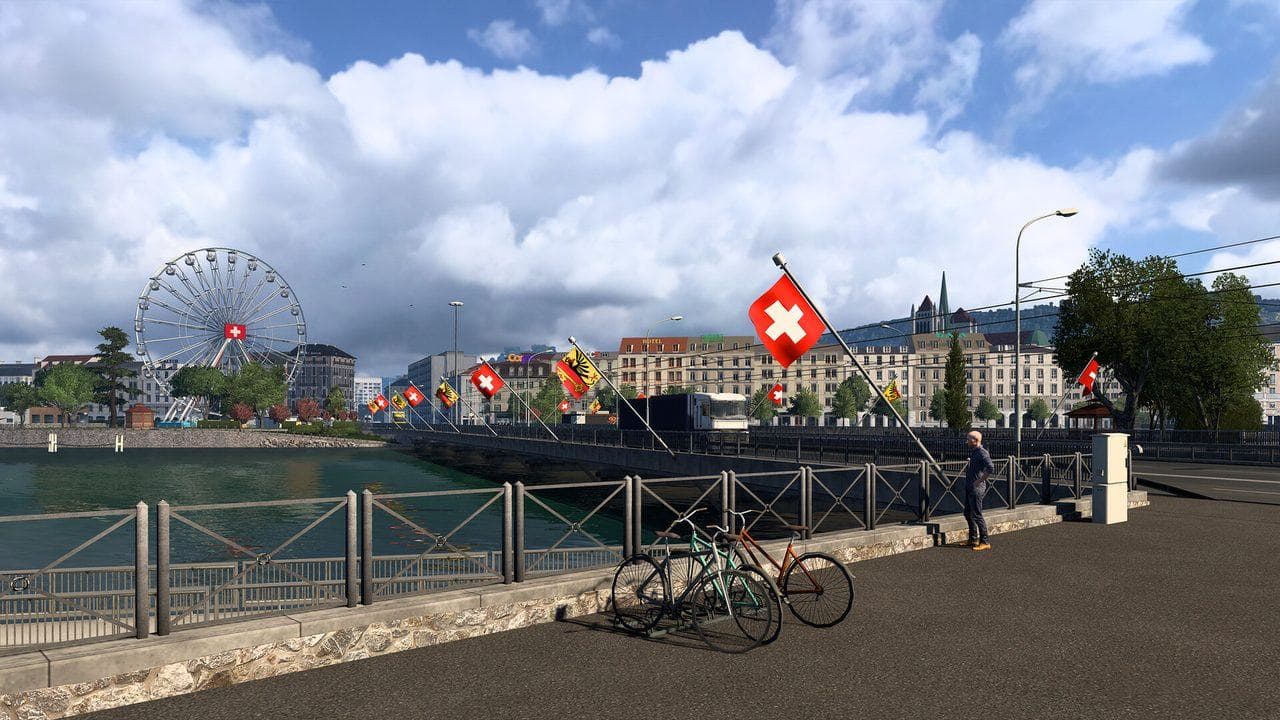
- Park safely or stop in a place where you will not block traffic.
- Choose a camera view or photo mode.
- Frame the truck and road context.
- Hide or reduce UI if needed.
- Take the screenshot.
- Check Steam screenshot manager and the ETS2 user folder if you cannot find it.
Do not take screenshots while losing control of a delivery. Pull over first.
Steam Screenshot vs In-Game Photo
| Capture method | Best use |
|---|---|
| Steam screenshot | Fast capture, easy upload through Steam |
| Photo mode | Better composition and camera control |
| External camera | Quick truck inspection |
| World of Trucks gallery | Community sharing context |
Your exact file location depends on how the screenshot was captured and how Steam is configured. If one place is empty, check the other before assuming the image is gone.
Better ETS2 Screenshots
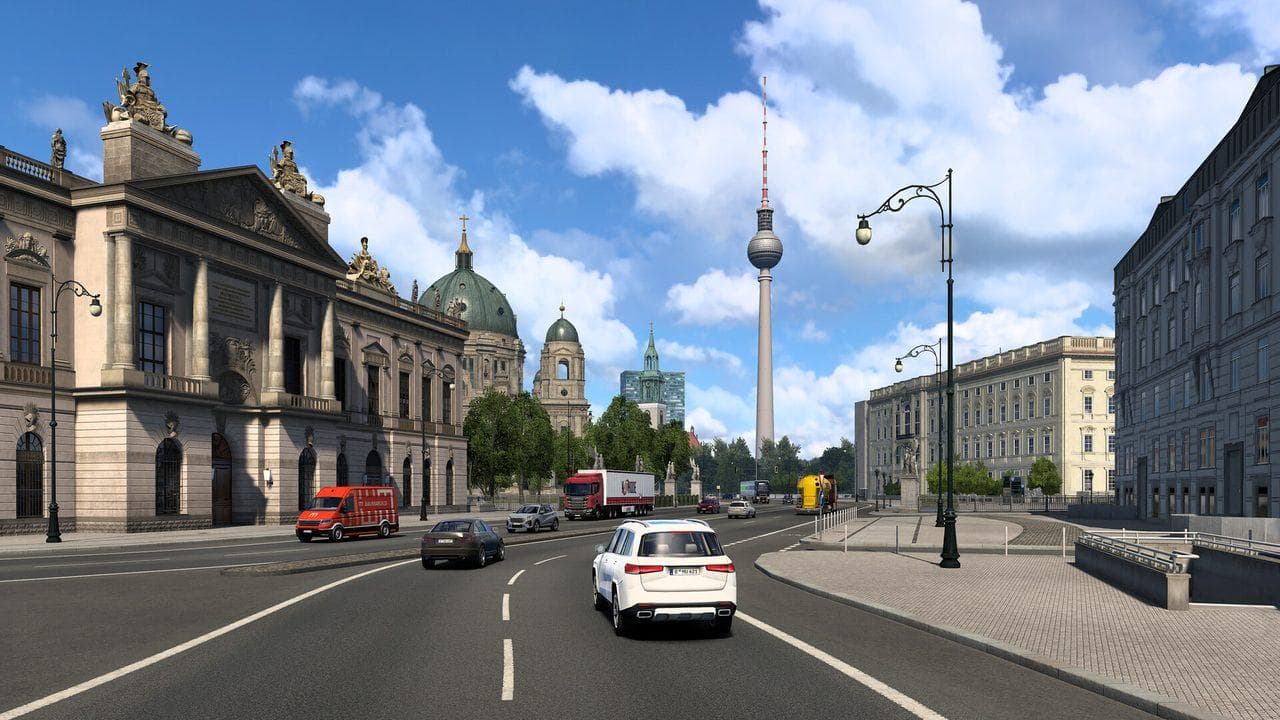
- Use side light, sunrise, sunset, or rain carefully.
- Show the cargo or route context.
- Avoid placing the truck too close to the edge of the frame.
- Turn the wheels slightly for parked truck shots.
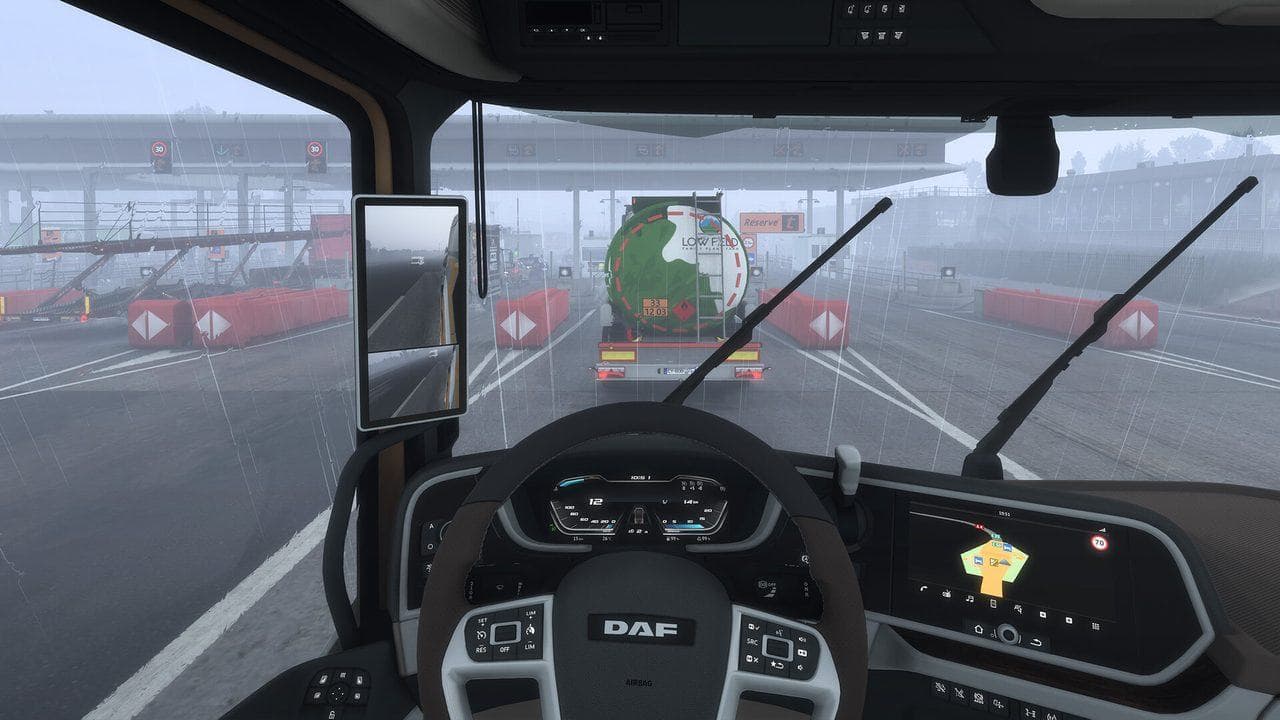
- Keep UI visible only when the screenshot is for troubleshooting.
Screenshots for Troubleshooting
For bug reports or mod help, a pretty screenshot is not enough. Capture the error, mod list, route, or log context that helps someone understand the problem. Use ETS2 Game Log and Crash Report Guide for crash evidence.
Read next
Continue through the next task instead of jumping to a random tag page.
 Beginner
Euro Truck Simulator 2 Controls Guide
Euro Truck Simulator 2 controls for beginners, including default keyboard keys, steering sensitivity, route advisor controls, parking, camera views, and wheel setup.
 Setup
SetupETS2 Seat, Mirrors, and FOV Guide for Better Visibility
Tune ETS2 seat position, mirrors, and field of view so you can see lanes, trailer angle, traffic, and dashboard information without fighting the camera.
 Community
World of Trucks Seasonal Events Guide
How ETS2 and ATS World of Trucks seasonal events usually work, including account setup, external contracts, limited-time destinations, and reward planning.