Beginner guide
ETS2 GPS or Route Advisor Not Working
Restore a missing ETS2 GPS or Route Advisor by checking keybinds, UI pages, advisor mode, profile settings, and UI mods.
UpdatedJul 4, 2026
Read7 min
LevelBeginner
ByETS2Hub
Quick answer
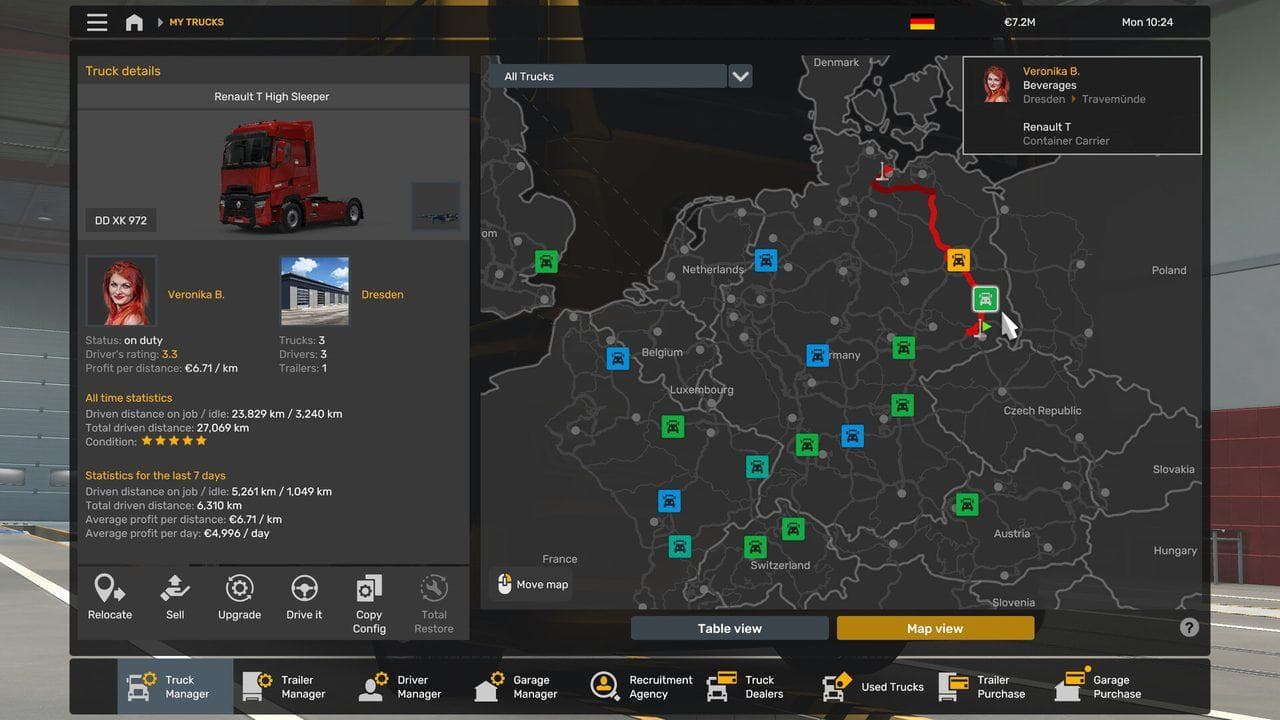
If the ETS2 GPS or Route Advisor is missing, first cycle Route Advisor pages and check the keybind, then confirm the route exists, remove UI mods, and reset only the relevant settings. The advisor may be hidden, on a different page, or overridden by a mod rather than actually broken.
The ETS2 GPS and Route Advisor can look broken when they are only hidden, on the wrong page, unbound, or changed by a UI mod. Start with the controls before editing files.
If you are still learning what the advisor does, read ETS2 Route Advisor Guide first.
Quick Checks
Try this first:
- Accept or set a route.
- Cycle Route Advisor pages.
- Check the Route Advisor keybind.
- Toggle the advisor visibility.
- Check whether you are using a cabin GPS instead of the overlay.
- Restart the game after changing UI mods.
Many missing-GPS reports are keybind or page-state issues.
Check Keybinds
Open Controls and look for:
- Route Advisor mouse control.
- Route Advisor next page.
- Route Advisor previous page.
- Map controls.
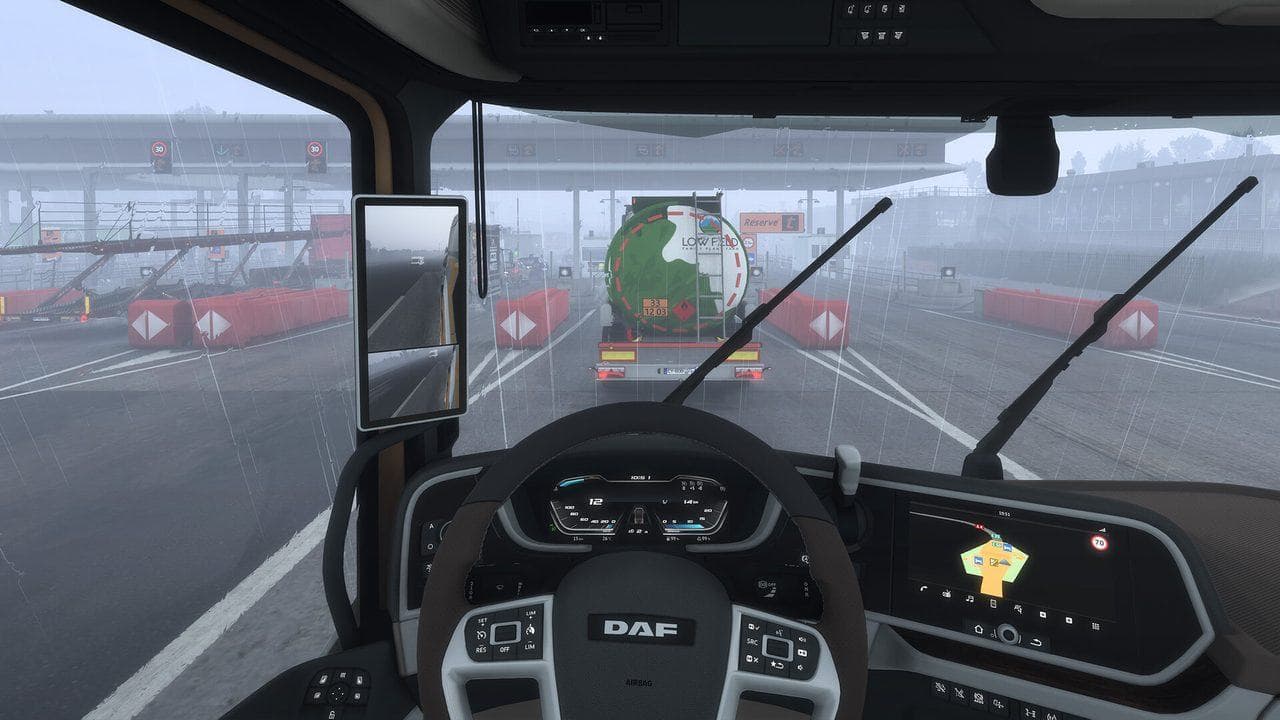
- Camera controls if you rely on dashboard GPS.
If you recently changed controller, wheel, Steam Input, or keyboard layout, the binding may not be where you expect.
Remove UI Mods Temporarily
Dashboard, map, route advisor, and minimal-UI mods can hide or reshape the advisor. Test safely:
- Back up the profile.
- Disable UI mods.
- Launch the game.
- Test a short route.
- Re-enable mods one at a time.
Do not remove a large mod stack without notes. You need to know which mod changed the UI.
Reset Carefully
If controls are badly tangled:
- Back up the profile.
- Screenshot or write down important bindings.
- Reset only control settings first.
- Avoid deleting profile files unless you know what they do.
If you need file locations, read ETS2 config.cfg Guide.
Common Mistakes
| Mistake | Better Fix |
|---|---|
| Assuming GPS is broken with no active job | Set a route first |
| Editing config before checking keybinds | Check controls first |
| Removing every mod at once | Disable UI mods one by one |
| Forgetting dashboard GPS | Check cabin view and truck configuration |
| Changing controller and advisor settings together | Test one change at a time |
If the advisor works again, take one short job before returning to valuable cargo.
Read next
Continue through the next task instead of jumping to a random tag page.
BeginnerETS2 Route Advisor Guide: GPS, Job Info, Damage, and Messages
Learn what the ETS2 Route Advisor shows, how to use its pages, and which GPS, job, damage, message, and money screens matter during deliveries.
BeginnerETS2 Route Planning Guide: Fuel, Rest, Ferries, and Safer Jobs
Plan ETS2 routes before accepting jobs by checking distance, deadlines, fatigue, fuel, ferries, tolls, cargo risk, and parking difficulty.
BeginnerEuro Truck Simulator 2 Controls Guide
Euro Truck Simulator 2 controls for beginners, including default keyboard keys, steering sensitivity, route advisor controls, parking, camera views, and wheel setup.