Beginner guide
ETS2 Route Advisor Guide: GPS, Job Info, Damage, and Messages
Learn what the ETS2 Route Advisor shows, how to use its pages, and which GPS, job, damage, message, and money screens matter during deliveries.
UpdatedJul 1, 2026
Read6 min
LevelBeginner
ByETS2Hub
Quick answer
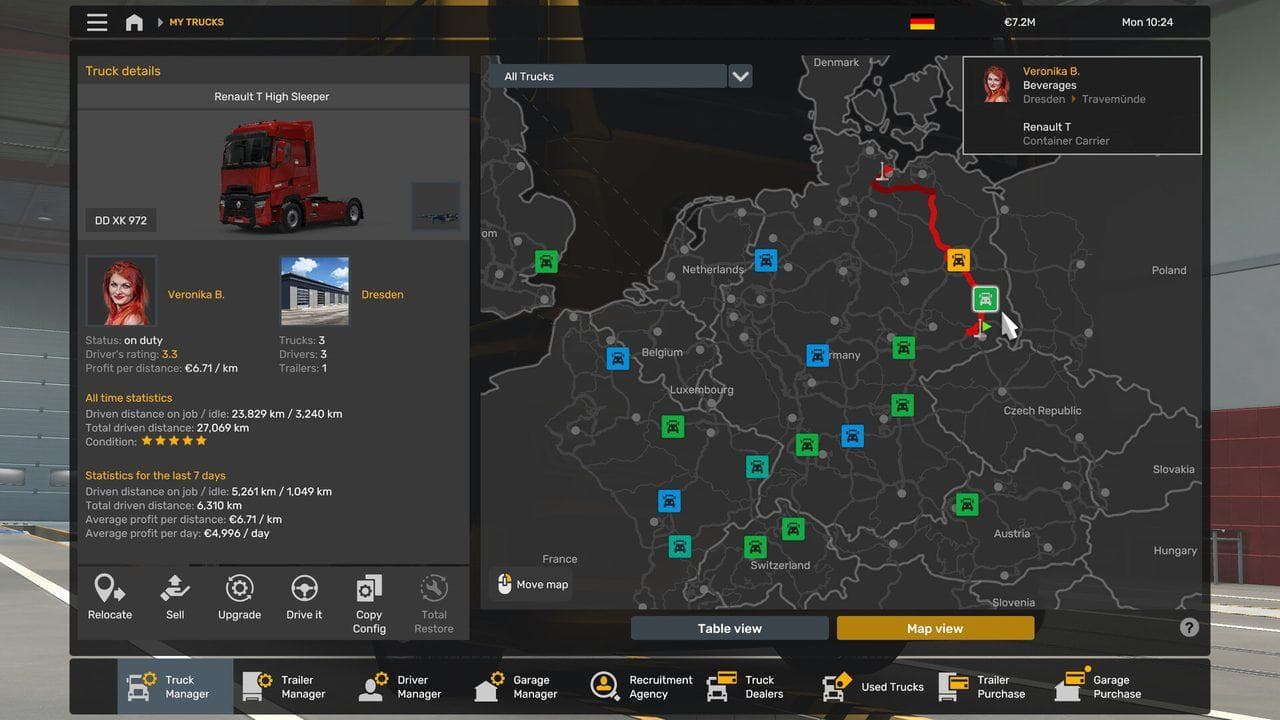
The ETS2 Route Advisor is the in-game panel that shows GPS, speed, route, job details, damage, messages, and money information. Beginners should keep it visible, learn how to switch pages, and check it before turns, rest stops, fuel stops, ferries, and delivery deadlines.
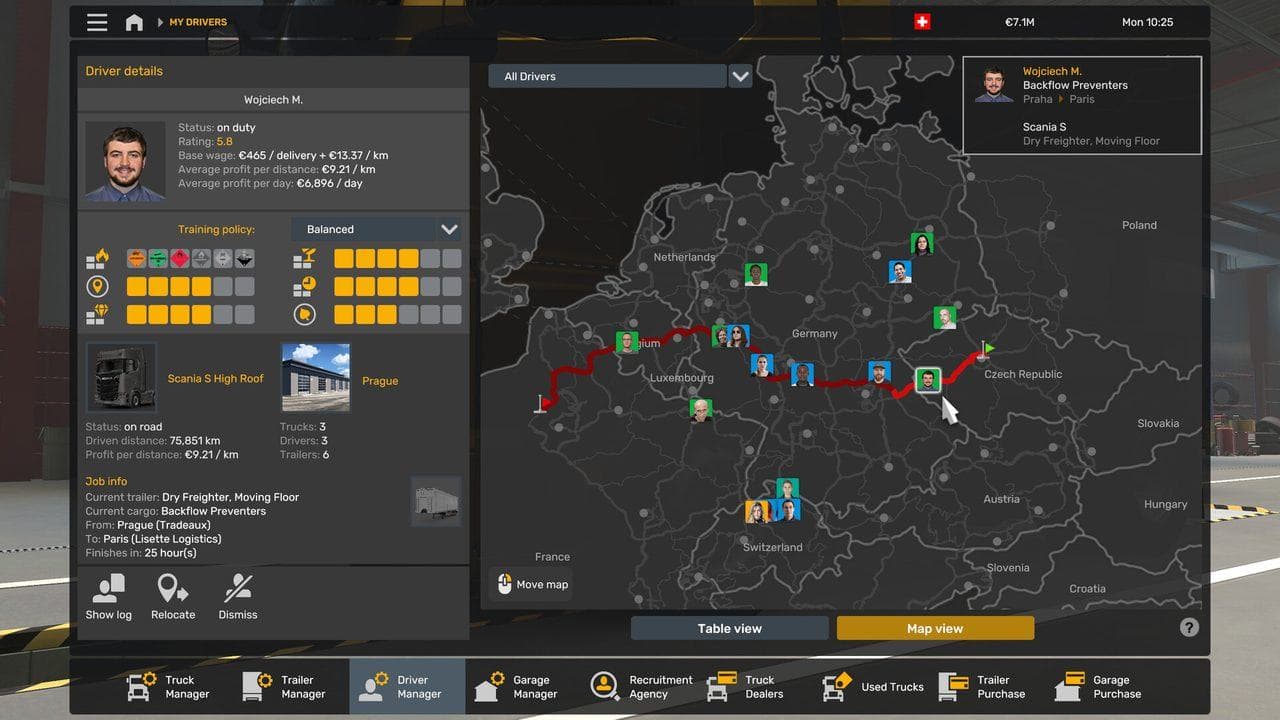
The ETS2 Route Advisor is your delivery dashboard. It is not just a GPS box: it helps you read route turns, speed limits, job deadlines, cargo damage, messages, fatigue, fuel, and money while driving.
If you are new, use this guide with Euro Truck Simulator 2 Controls Guide, How to Park in ETS2, and the Beginner Roadmap.
What The Route Advisor Shows
| Page | Use It For |
|---|---|
| GPS route | Turns, lanes, road shape, speed limits, and destination direction |
| Job information | Cargo, deadline, route distance, and expected payout |
| Damage | Truck, trailer, and cargo condition |
| Messages | Emails, bank notices, driver updates, and game notifications |
| Money and company | Balance, income, fines, and company progress |
The exact controls can vary if you remap keys or use a controller. Before long routes, confirm how to open, hide, and switch Route Advisor pages in your controls menu.
How Beginners Should Use It
- Keep the GPS visible while learning.
- Check job distance and deadline before accepting long routes.
- Watch fuel and fatigue before remote roads.
- Check damage after hard impacts or bad parking attempts.
- Read messages before buying garages, hiring drivers, or taking loans.
- Hide the panel only when you already know the route and want a cleaner view.
Common Mistakes
- Ignoring the job deadline until it is too late.
- Driving past fuel because the GPS turn felt more urgent.
- Hiding Route Advisor before learning road signs and lane choices.
- Forgetting to check damage after a collision.
- Following GPS blindly into a turn that needs a wider truck angle.
Version And Mod Notes
UI mods can change Route Advisor layout, size, colors, and GPS behavior. After an ETS2 update, test UI mods on a backup profile before loading your main career. Use the ETS2 Update Checklist and Safe ETS2 Mods Guide if the panel disappears or looks wrong after updating.
FAQ
Should beginners keep Route Advisor on?
Yes. Keep it on until speed limits, turns, rest stops, fuel, and delivery deadlines feel natural.
Can I drive without Route Advisor?
Yes, but it is harder for beginners. Hide it only after you know how to read road signs, mirrors, dashboard gauges, and delivery information.
What should I read next?
Read How to Park in ETS2, ETS2 Lights and Wipers Guide, and Best ETS2 Settings.
Read next
Continue through the next task instead of jumping to a random tag page.
 Beginner
Euro Truck Simulator 2 Controls Guide
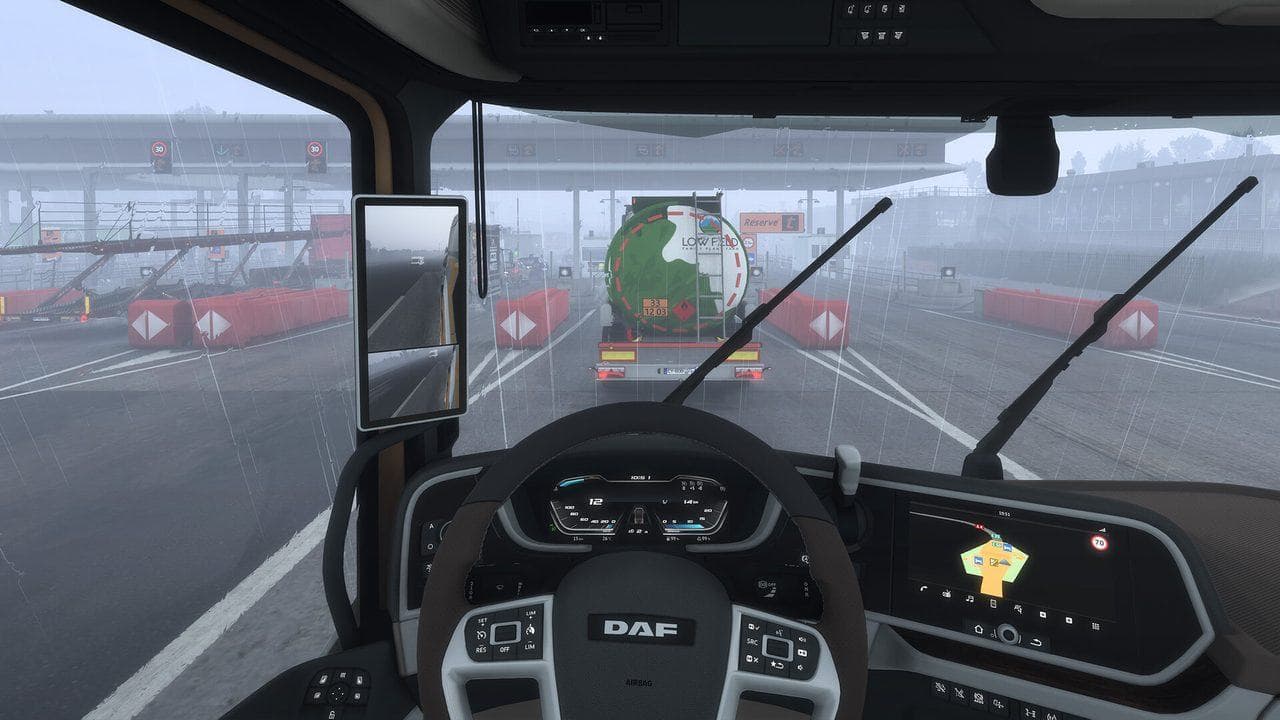
Euro Truck Simulator 2 controls for beginners, including default keyboard keys, steering sensitivity, route advisor controls, parking, camera views, and wheel setup.
BeginnerETS2 Beginner Guide: Your First Week Roadmap
Start Euro Truck Simulator 2 with a practical first-week guide to controls, quick jobs, money, skill points, your first truck, DLC, and safe mods.
 Beginner
How to Park in ETS2: Easy Parking Guide for Beginners
Learn how ETS2 parking works, which delivery parking option to choose, and how to reverse into marked bays without damaging your cargo.