Setup guide
ETS2 Game Radio Guide: Stations, Controls and No-Sound Fixes
How to use the five built-in ETS2 Game Radio stations in 1.60, choose a station, control playback, and fix common no-sound problems.
UpdatedJul 30, 2026
Read8 min
LevelBeginner
ByETS2Hub
Quick answer
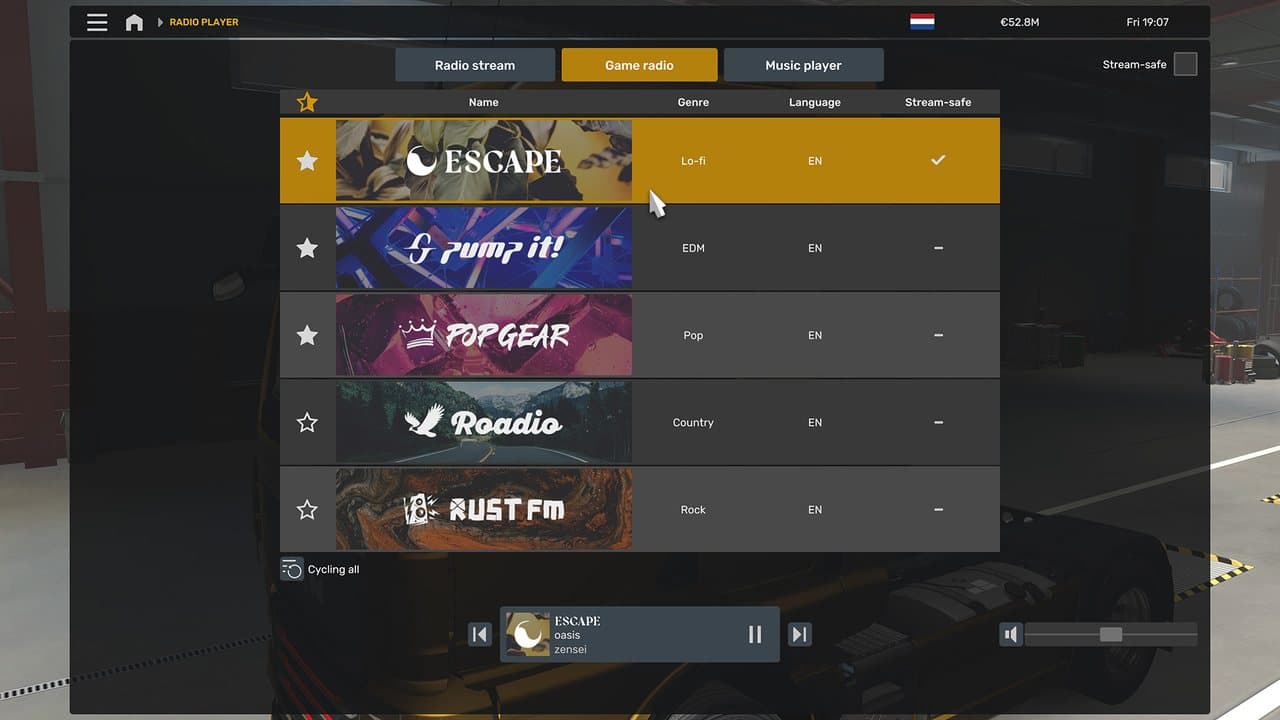
ETS2 Game Radio is a built-in 1.60 feature with five themed stations: Rust FM, Escape, PUMP IT!, Pop Gear, and Roadio. Open the F6 widget, move to the radio options, and choose a station. It is separate from custom internet streams, so you do not need to edit live_streams.sii or maintain an external station URL.
Game Radio is the built-in station system introduced with ETS2 1.60. It gives you five themed music stations without requiring a web stream, a browser tab, or an edit to live_streams.sii.
Use Game Radio if you want a reliable in-game selection. Use the Custom Radio Streams Guide only when you want to add an external internet station yourself.
The Five Game Radio Stations
| Station | Style | Best Fit |
|---|---|---|
| Rust FM | Rock | Motorway driving and energetic long hauls |
| Escape | Ambient/electronic | Night routes and relaxed scenery |
| PUMP IT! | Dance/electronic | Fast-paced driving sessions |
| Pop Gear | Pop | A broad, familiar playlist |
| Roadio | Country | Rural roads and classic trucking mood |
The names and themes are part of the official Game Radio feature. They are not community stream presets.
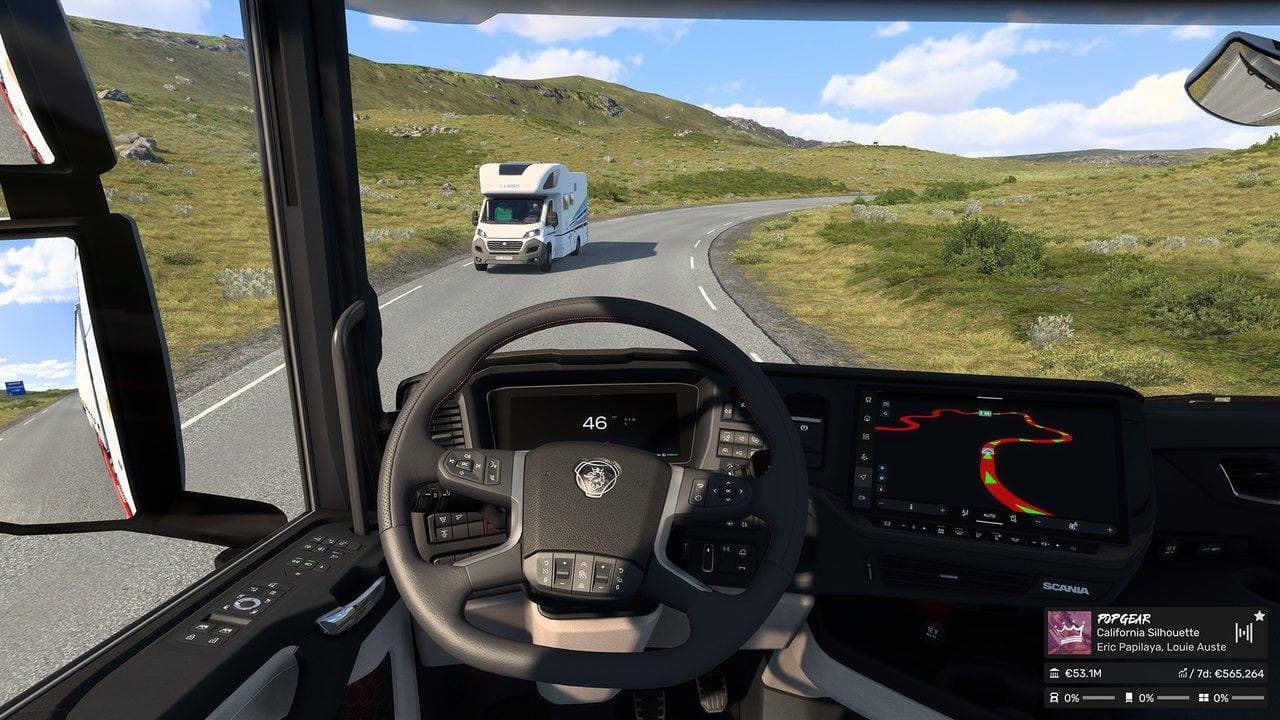
How to Open and Use Game Radio
- Confirm that ETS2 is updated to stable version 1.60 or later.
- Load a profile and enter the truck cab.
- Open the F6 widget.
- Move to the radio or media options.
- Select the Game Radio catalogue.
- Choose Rust FM, Escape, PUMP IT!, Pop Gear, or Roadio.
- Use the normal radio controls to pause, resume, or change the station.
Exact bindings depend on your keyboard, controller, or wheel profile. If F6 is reassigned, open Options → Keys & Buttons and search for the relevant widget or radio action.

Game Radio vs Custom Radio Streams
| Feature | Game Radio | Custom Stream |
|---|---|---|
| Added by | SCS Software | Player |
| Available from | ETS2 1.60 | Existing custom radio system |
| Needs a URL | No | Yes |
| Needs file editing | No | Usually |
| Can stop working when a station changes URL | No external URL to maintain | Yes |
| Best for | Quick, reliable listening | A specific real-world or community station |
You can use both systems. Game Radio does not remove the custom stream feature.
If Game Radio Has No Sound
Check these in order:
- Make sure the selected station is playing rather than paused.
- Raise the in-game radio/music volume.
- Confirm that the Windows output device matches the device ETS2 opened with.
- Check whether another app has exclusive control of the audio device.
- Restart ETS2 after changing headphones, speakers, or USB audio.
- Test a different Game Radio station.
- Temporarily disable sound and UI mods.
- Verify that Steam has updated ETS2 to 1.60 or later.
If normal engine audio works but every radio source is silent, reset only the relevant audio settings before changing graphics, controls, or save files.
If F6 Does Not Open the Radio Widget
The key may be rebound or captured by wheel software. Open Options → Keys & Buttons, find the F6/widget function, and assign a conflict-free button. Then test it in a clean profile.
For a complex wheel setup, avoid assigning the same physical control to the widget and another held function. Read Beginner's Guide to ETS2 Controls if you need a safe base layout.
Does Game Radio Need Internet?
The official feature is designed as an in-game catalogue, but availability and delivery behavior can still change with SCS updates. The important difference is that players do not have to maintain individual third-party stream URLs.
If you specifically need offline local audio, Game Radio is not a promise that every track is stored permanently on your PC. Keep expectations separate from the custom music and internet radio systems.
Official Source and Verification
This guide was last verified on July 30, 2026 against SCS Software's ETS2 1.60 release notes and the Game Radio team feature. For every major change in the release, read the ETS2 1.60 Update Overview.
Read next
Continue through the next task instead of jumping to a random tag page.
 Updates
ETS2 1.60 Update: Game Radio, Rest Changes and Job Details
A practical ETS2 1.60 update guide covering Game Radio, Job Details, GPS arrival estimates, expanded rest, improved materials, lights, and truck changes.
 Setup
SetupETS2 Radio Guide: Add Custom Stations and Fix Streams
Add custom radio stations to ETS2 with live_streams.sii, then fix stations that do not appear, play, or keep buffering in game.
 Beginner
Euro Truck Simulator 2 Controls Guide
Euro Truck Simulator 2 controls for beginners, including default keyboard keys, steering sensitivity, route advisor controls, parking, camera views, and wheel setup.