Setup guide
ETS2 Radio Guide: Add Custom Stations and Fix Streams
Add custom radio stations to ETS2 with live_streams.sii, then fix stations that do not appear, play, or keep buffering in game.
UpdatedJul 14, 2026
Read8 min
LevelBeginner
ByETS2Hub
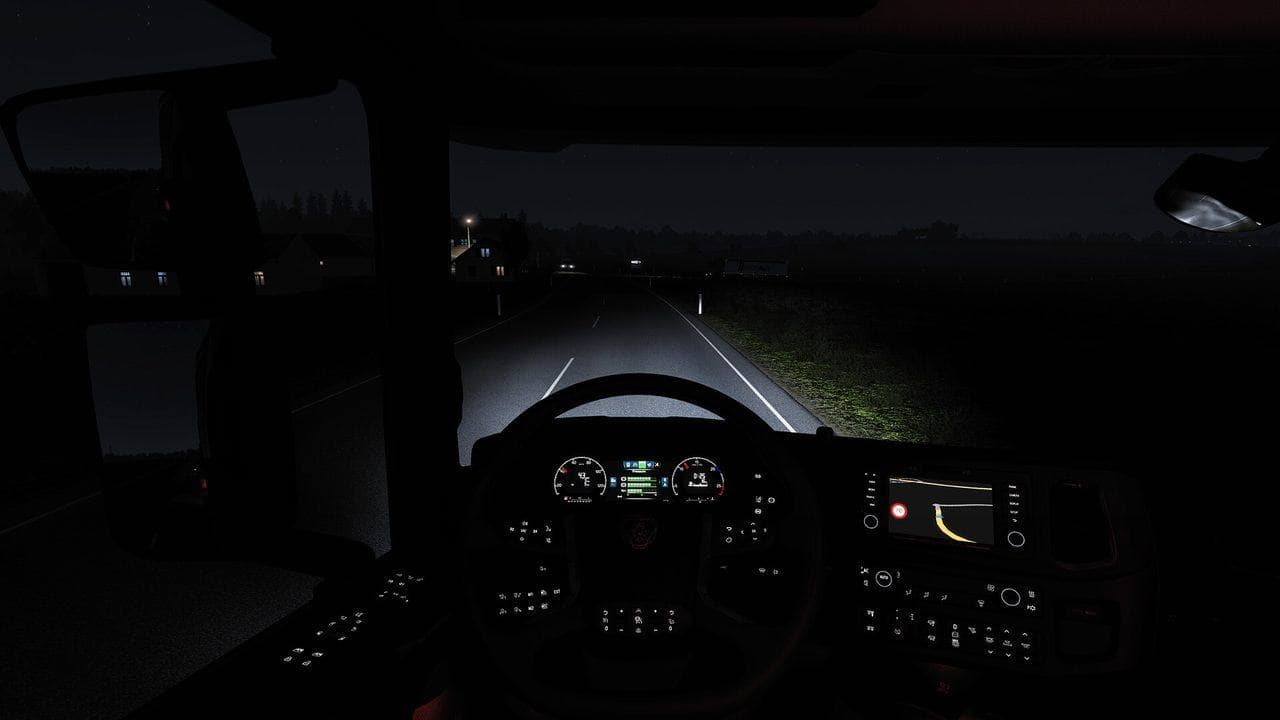
Quick answer
To add a custom radio station in ETS2, close the game, back up Documents\Euro Truck Simulator 2\live_streams.sii, add a direct playable stream URL in the existing format, save the file, then reopen ETS2 and select the station under Internet radio.
To add radio in ETS2, edit the live_streams.sii file while the game is closed, use a direct audio stream URL, keep the station format intact, and test one station before replacing your full list.
This ETS2 radio guide links naturally with Best ETS2 Settings, Beginner's Guide to ETS2 Controls, and What Is the Latest ETS2 Version? because radio, controls, and version changes all shape long-haul sessions. If radio files or UI mods behave strangely after a patch, use the ETS2 Update Checklist.
File Location
On Windows, open:
Documents\Euro Truck Simulator 2\live_streams.sii
For American Truck Simulator, the equivalent file is:
Documents\American Truck Simulator\live_streams.sii
If the file does not exist, open the in-game radio once or create a station list through the game's radio interface.
Backup First
Before replacing or editing the file, make a backup copy. Name it something obvious, such as:
live_streams.backup.sii
This lets you return to your previous stations if a stream pack fails or includes stations you do not want.
Also keep one clean copy after major ETS2 updates. Radio files are simple compared with map mods, but broken stream packs can still waste time if you replace a working list without a backup.
Add a Station
A station entry normally includes a stream URL, station name, genre, language, bitrate, and favorite flag. Keep the format consistent with the existing file and edit while the game is closed.
Example shape:
stream_data[]: "https://example.com/radio.mp3|Station Name|Genre|Language|128|0"
The exact stream URL must point to a playable audio stream, not just a radio station's normal website. If a URL opens a web player with buttons and ads, it may not work in the game.

Stream Pack Advice
Large station packs can be convenient, but they also age quickly. Servers close, formats change, and some stations block listeners from other countries.
Before replacing your full list:
- Check when the pack was last updated.
- Test a few stations outside the game.
- Remove stations you will never use.
- Keep the original European stations if you enjoy regional immersion.
- Avoid packs that bundle unrelated files or installers.
In Game
After saving live_streams.sii, start ETS2 and open the radio player from the route advisor or pause menu. Look for your station name in the internet radio list, mark it as a favorite if you want it near the top, then test it before starting a long delivery.
If the station does not appear, the most common cause is a broken quote, missing separator, or a stream URL that points to a website instead of an audio file. Restore your backup and retry with one station at a time.
- Start ETS2.
- Press R to open the radio player.
- Choose Internet radio.
- Select your station.
- Wait a few seconds for the stream to buffer.
Some streams take 10 to 20 seconds to start, especially if the server is far away or busy.
FAQ
Why does my ETS2 radio station not play?
Usually the URL is not a direct playable stream, the station blocks your region, or the stream format is not supported by the game. Test the URL in a normal media player before adding it to ETS2.
Can I use radio packs in ETS2?
Yes, but treat them like mods. Keep a backup, check when the pack was updated, and avoid packs that include installers or unrelated files.
Is this different from ATS radio setup?
The file format is similar, but this page is focused on Euro Truck Simulator 2. Use the ETS2 folder under Documents when editing your station list.
Troubleshooting
| Problem | Fix |
|---|---|
| Station does not appear | Check the file path and syntax |
| Station appears but will not play | Test the stream URL in a browser or media player |
| Buffering is slow | Try a lower bitrate stream or another server |
| File resets | Close the game before editing the file |
| Station plays outside the game only | Look for the direct MP3, AAC, OGG, or playlist stream URL |
| Some countries cannot connect | Choose a station with international streaming access |
Custom radio is a small feature, but it changes the mood of long drives more than almost any graphics setting.
Read next
Continue through the next task instead of jumping to a random tag page.
 Setup
SetupBest ETS2 Settings
The best ETS2 settings for new and returning players, covering controls, steering, mirrors, route advisor, parking, graphics, audio, and comfort options.
 Beginner
Euro Truck Simulator 2 Controls Guide
Euro Truck Simulator 2 controls for beginners, including default keyboard keys, steering sensitivity, route advisor controls, parking, camera views, and wheel setup.
 Updates
ETS2 Update Checklist: What to Do Before and After Updating
Use this ETS2 update checklist to back up profiles, test mods, check version notes, and avoid breaking a save after a major game update.