Setup guide
How to Show FPS in ETS2 and Test Settings Properly
Use an FPS counter in ETS2 and test graphics settings in real driving situations instead of changing sliders randomly.
UpdatedJul 1, 2026
Read6 min
LevelBeginner
ByETS2Hub
Quick answer
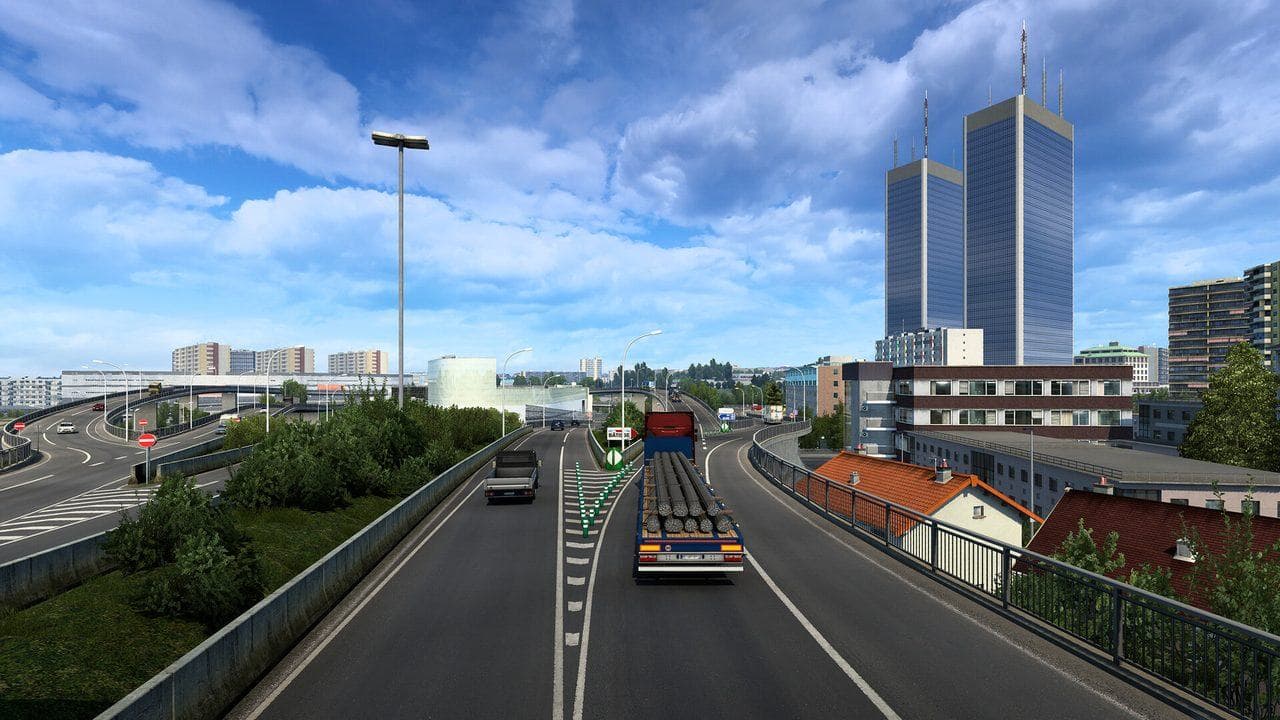
Use Steam's FPS counter or another trusted overlay to check ETS2 performance, then test settings on the same short route with city traffic, mirrors, and one delivery yard. Average FPS matters, but smooth frame pacing and readable mirrors matter more for driving.
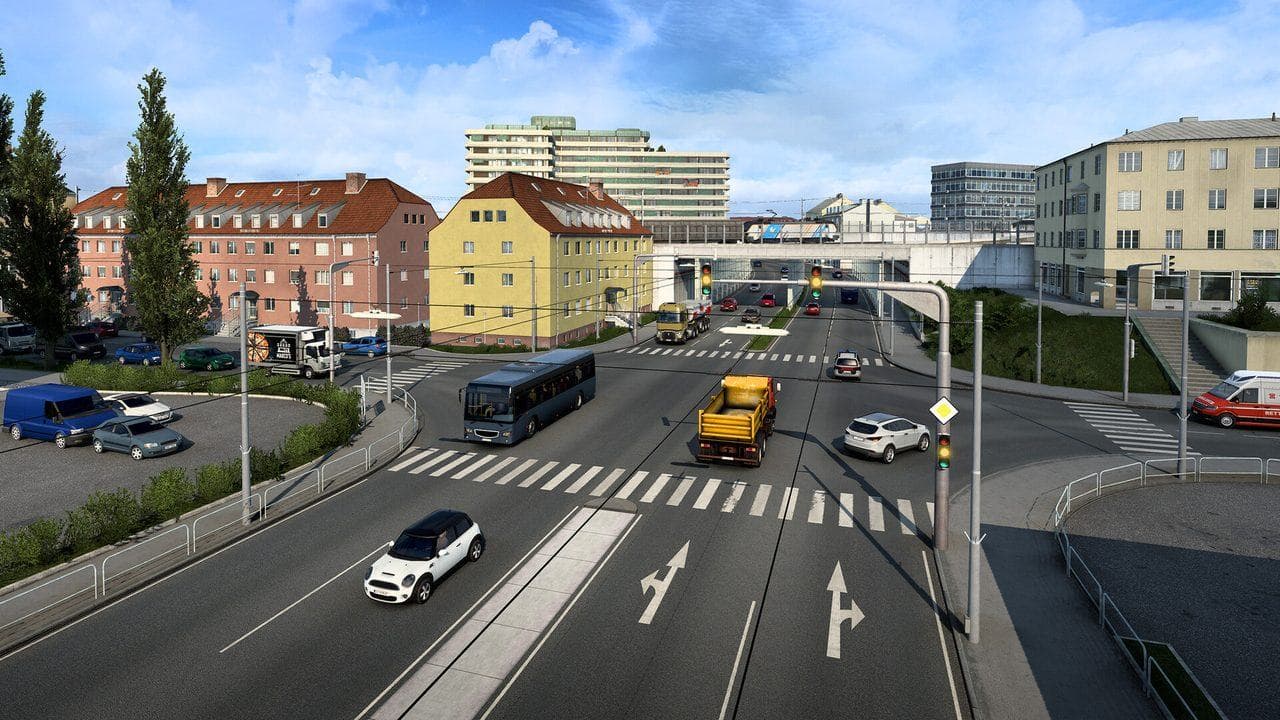
An FPS counter is useful only if you test ETS2 in the places that actually cause problems. A quiet road at noon tells you less than a city, mirror-heavy depot, rain, or dense traffic.
Simple Ways To Show FPS
Common options:
- Steam in-game FPS counter.
- GPU driver overlay.
- Trusted performance overlay software you already use.
Use one overlay at a time. Multiple overlays can create confusion or performance issues.
What To Test
Build a short route with:
- City traffic.
- A motorway section.
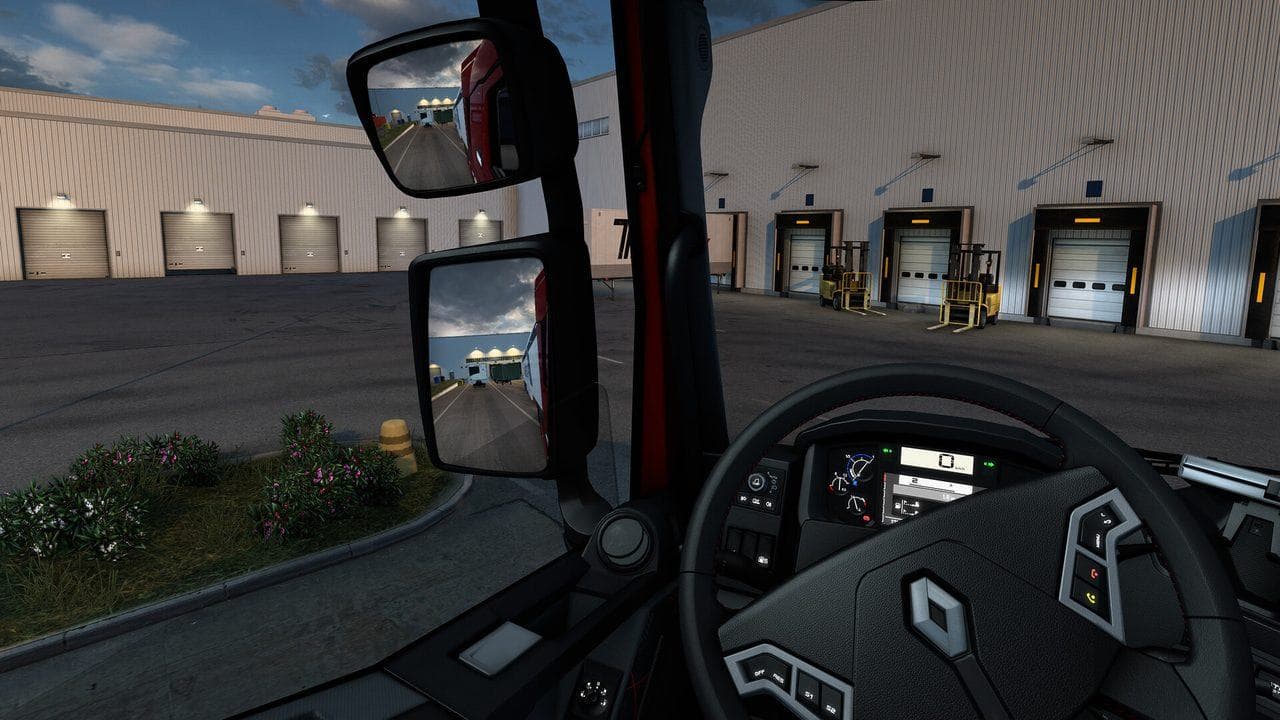
- A delivery yard.
- Cabin view with mirrors visible.
- One turn that requires mirror checking.
Then use the same route after each setting change.
Settings To Change First
If FPS is low, test these before lowering everything:
| Setting area | Why it matters |
|---|---|
| Mirror distance and quality | Mirrors can be expensive |
| Shadows | Heavy in cities and yards |
| Scaling | Very costly above native resolution |
| SSAO and reflections | Can reduce smoothness |
| Traffic and heavy mods | Can hurt CPU and frame pacing |
Read ETS2 Graphics Performance Settings for the full order.
FPS Is Not The Only Metric
A stable 50 FPS can feel better than unstable 70 FPS. Watch for:
- Stutters at intersections.
- Hitching when entering cities.
- Mirror lag.
- Auto-save pauses.
- Frame pacing that feels uneven.
If the game feels rough on a strong PC, the issue may be stutter rather than raw FPS.
Testing Rule
Change one setting, drive the test route, write down the result, then move to the next setting. Random changes create random conclusions.
Read next
Continue through the next task instead of jumping to a random tag page.
 Setup
SetupETS2 Graphics and Performance Settings for Better FPS
Tune ETS2 graphics and performance settings for smoother driving, better FPS, readable mirrors, and fewer frame drops in cities and rain.
SetupETS2 Low-End PC Settings for 30 to 60 FPS
Tune ETS2 for low-end PCs by lowering the settings that affect driving smoothness most: mirrors, scaling, shadows, traffic, and heavy mods.
SetupETS2 Mirror Settings and FPS: What To Lower First
Fix ETS2 FPS drops caused by mirrors by tuning mirror distance, mirror quality, virtual mirrors, and cabin visibility without driving blind.