Setup guide
ETS2 Console Commands and Developer Camera Guide
Enable the ETS2 developer console safely, use the free camera for testing, and avoid risky command habits on your main profile.
UpdatedJul 4, 2026
Read9 min
LevelIntermediate
ByETS2Hub
Quick answer
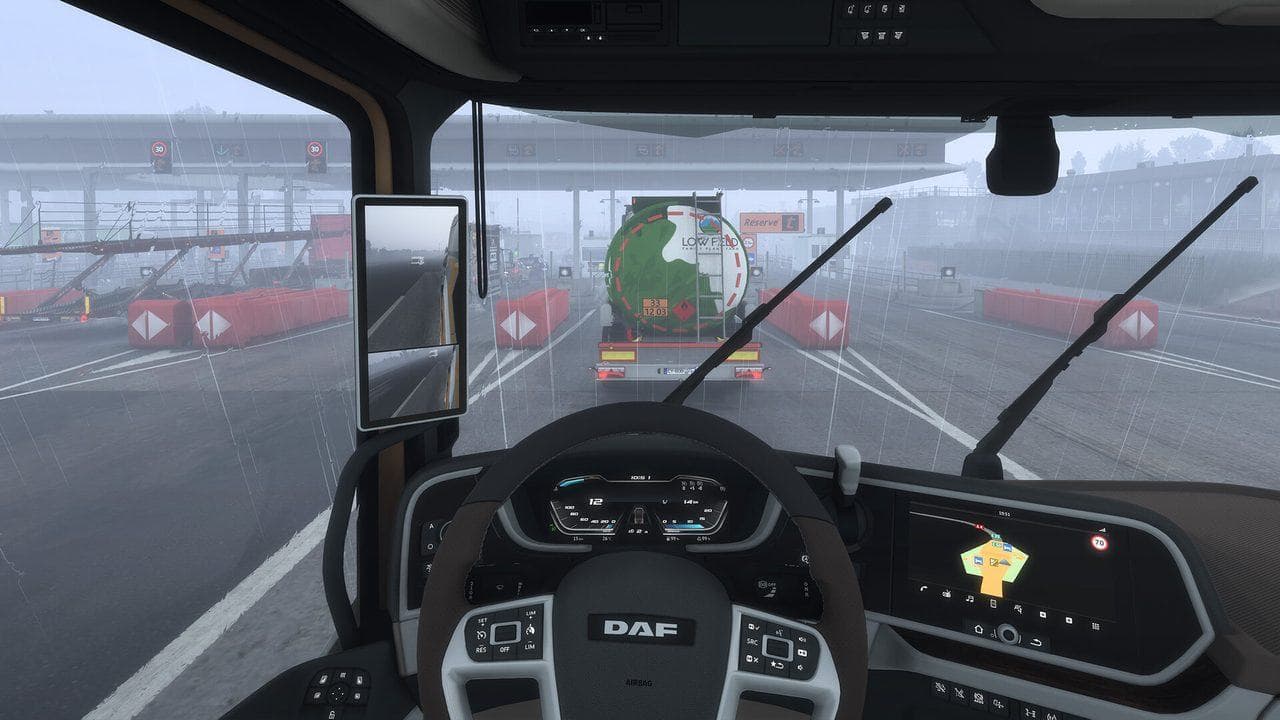
To use ETS2 console commands, close the game, back up config.cfg, enable developer and console values, then test on a spare profile. Use the console for diagnostics, screenshots, time, weather, route testing, or recovery practice, not as a replacement for normal driving. Keep commands small, reversible, and documented.
The ETS2 developer console is useful when you need diagnostics, route testing, screenshots, or controlled troubleshooting. It is also easy to misuse if you edit config files casually or run commands on the profile you care about.
Start with a backup. If you only want to repair a damaged truck or recover a stuck delivery, read ETS2 /fix Command and Service Recovery first. The console is a stronger tool, so treat it with more caution.
What the Console Is Good For
Use the console for controlled tasks:
- Checking game state while troubleshooting.
- Testing camera positions for screenshots.
- Moving the developer camera for route observation.
- Testing time or weather in a repeatable way.
- Diagnosing whether a profile, mod, or route behaves differently after a change.
SCS documents many console commands on its modding wiki. That page also notes that its command list can be incomplete, so use it as a technical reference instead of a promise that every command is suitable for normal profiles: SCS Modding Wiki Console Commands.
Enable the Console Safely
Typical setup:
- Close ETS2.
- Open your ETS2 user folder.
- Copy
config.cfgsomewhere safe. - Open
config.cfgin a plain text editor. - Find
uset g_developeranduset g_console. - Change both values to
1. - Save the file.
- Launch ETS2 and test on a spare profile.
If you cannot find the file, use Where Are ETS2 Profiles, Saves, Mods, and Logs Stored? before editing anything.
Developer Camera Basics
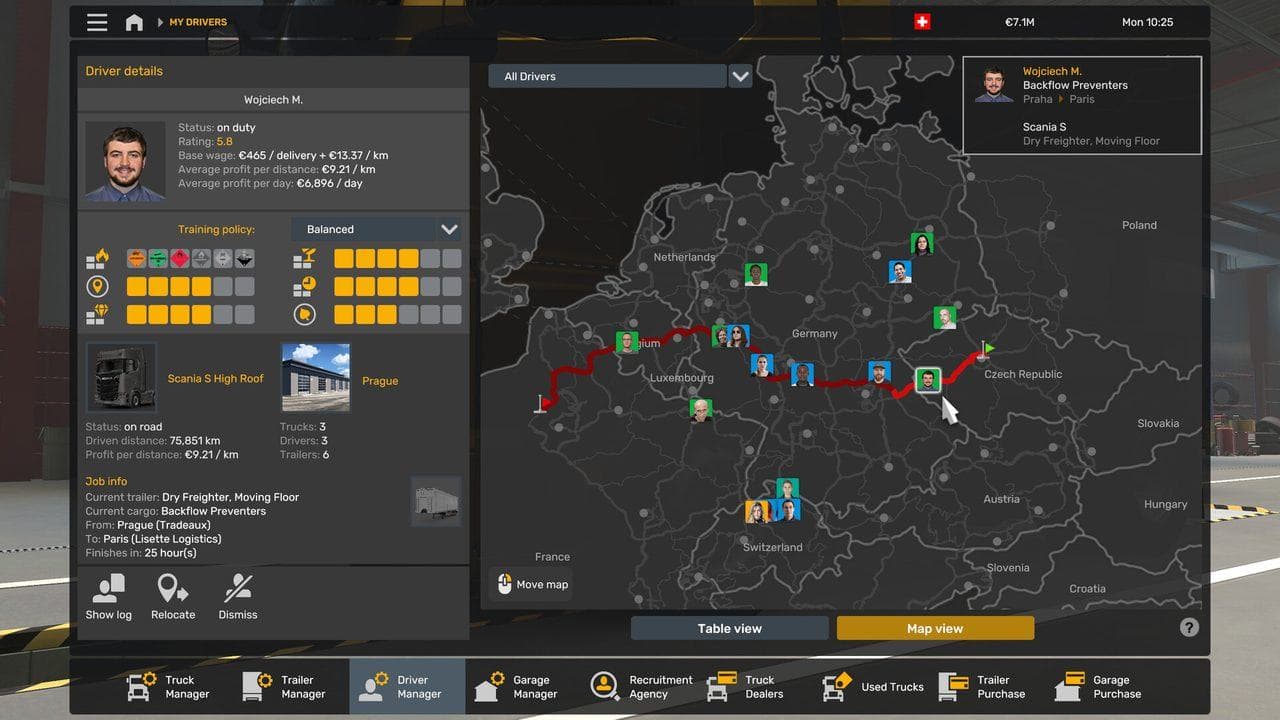
The developer camera is useful for screenshots, route observation, and checking a scene without driving through it repeatedly. Keep the purpose narrow:
- Use it to inspect a delivery area before practicing.
- Use it to frame screenshots for a guide or bug report.
- Use it to confirm whether a route issue is visual, traffic-related, or caused by mods.
Do not rely on developer-camera movement to finish normal career jobs. It can hide real driving problems such as bad route planning, poor braking distance, or wrong cargo choice.
Safer Command Habits
Follow these rules:
- Run one command at a time.
- Save before testing.
- Avoid commands you do not understand.
- Do not copy command blocks from old videos.
- Keep a short note of every value you changed.
- Revert config changes if the test is finished.
If a command changes time, position, traffic, or profile state, test it away from valuable cargo.
Common Mistakes
| Mistake | Better Choice |
|---|---|
| Editing config while ETS2 is open | Close the game first |
| Testing on your main career | Use a spare profile |
| Running many commands at once | Change one variable at a time |
| Treating old command lists as current | Check a reliable technical source |
| Using console tools to mask mod crashes | Fix the mod stack and load order |
When To Avoid the Console
Avoid console work when:
- You have no backup.
- You are mid-delivery with valuable cargo.
- A modded profile already crashes.
- You are trying to fix a TruckersMP or online service issue.
- You only need a normal setting from the options menu.
For most players, in-game settings, profile backups, and Steam file verification are safer first steps. Use the console when you know what you are testing and how to undo it.
Read next
Continue through the next task instead of jumping to a random tag page.
SetupETS2 config.cfg Guide: Safe Edits, Backups, and Reset Steps
Edit or reset ETS2 config.cfg safely by backing up first, changing one setting at a time, and avoiding risky copy-paste tweaks.
SetupWhere Are ETS2 Profiles, Saves, Mods, and Logs Stored?
Find Euro Truck Simulator 2 profiles, saves, mod folders, Workshop content, config.cfg, live_streams.sii, and game.log.txt safely.
SetupHow to Back Up ETS2 Profiles and Saves
Back up ETS2 profiles and saves before updates, mods, TruckersMP, Steam beta branches, or config edits, then restore a clean copy if needed.