Beginner guide
ETS2 Job Details Widget Guide: Read the Job Before You Drive
How to use the ETS2 1.60 F6 Job Details Widget and GPS arrival estimates to read cargo, weight, pay, deadline, distance, and delivery risk.
UpdatedJul 30, 2026
Read9 min
LevelBeginner
ByETS2Hub
Quick answer
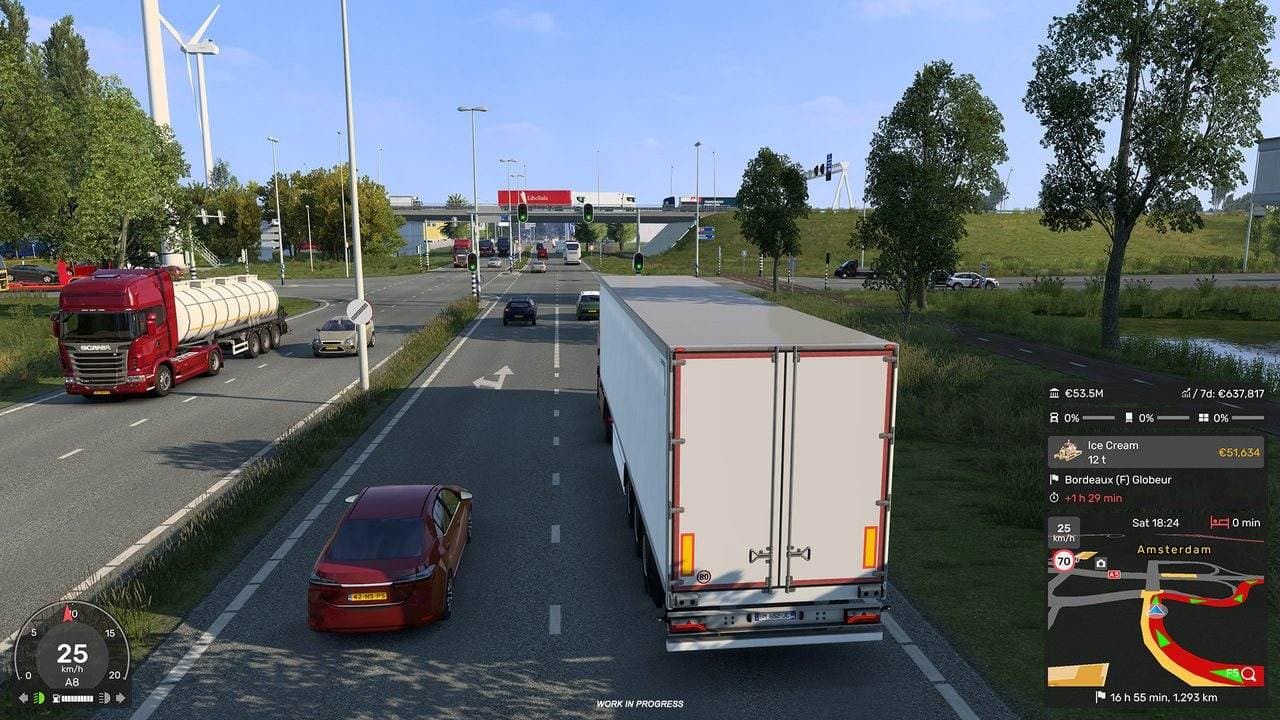
Open the ETS2 1.60 Job Details Widget with F6 to check cargo type, weight, delivery destination, income, and remaining contract time. Then compare it with the GPS estimated arrival day/time, remaining travel time, and distance. The contract panel shows what the job allows; the GPS shows what your current route predicts.
The ETS2 Job Details Widget is the contract view you should check before making a delivery decision. In version 1.60, it shows cargo, weight, destination, income, and remaining time more clearly. The GPS adds estimated arrival day/time, travel time, and distance.
Use the two together: Job Details is the contract; GPS is the route estimate.
How to Open Job Details
- Start or accept a delivery.
- Press F6 to open the widget.
- Move through Widget Options if the first F6 page is not Job Details.
- Read cargo, weight, destination, income, and time remaining.
- Compare those values with the GPS ETA and distance.
If F6 does not work, check Options → Keys & Buttons for a reassigned or conflicting widget binding.
What Each Field Tells You
| Field | Meaning | Decision It Supports |
|---|---|---|
| Cargo type | What you are carrying | Fragile, ADR, urgent, or special handling |
| Weight | How heavy the load is | Hill speed, braking distance, truck suitability |
| Delivery | Destination company or city | Route direction and final approach |
| Income | Expected contract payment | Compare reward with risk and distance |
| Remaining time | Time left in the delivery window | Rest, fuel, detour, and late-delivery risk |
Total income is not enough. A heavy urgent job with a tight delivery window can be worse than a slightly lower-paying route with enough time for rest.
Read the GPS Arrival Estimate
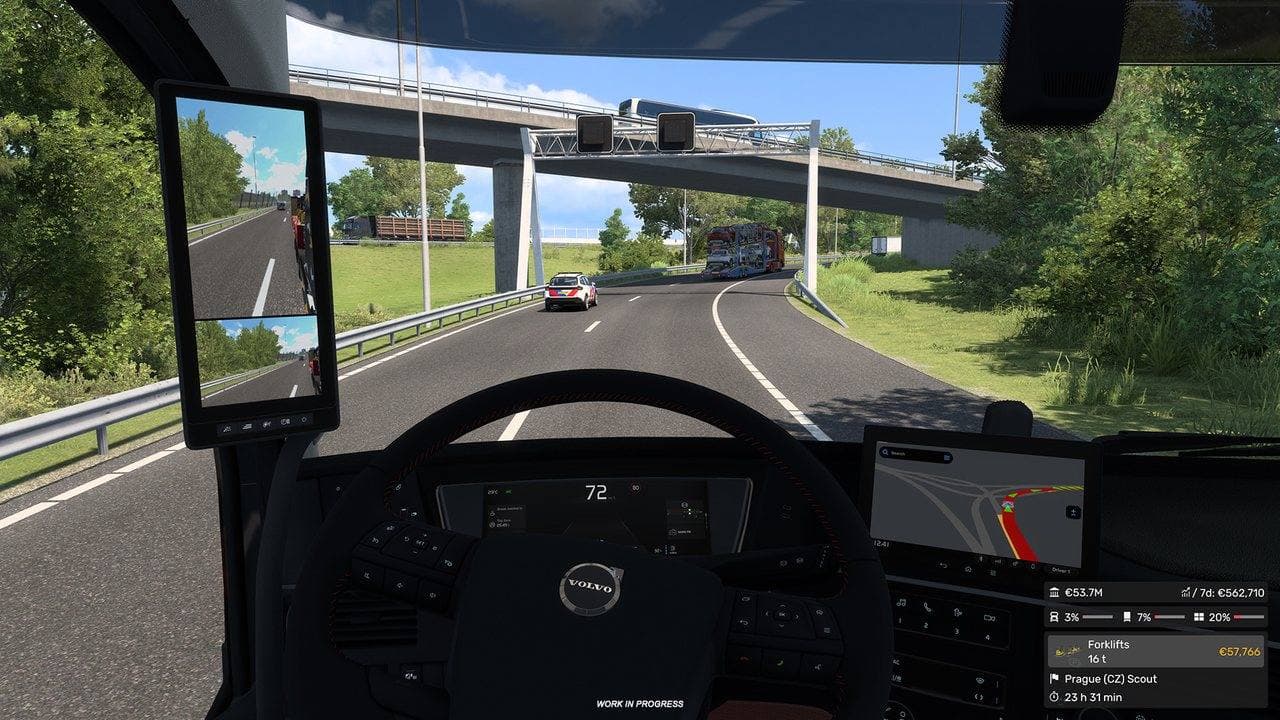
The 1.60 GPS can show:
- Estimated arrival day and time.
- Remaining travel time.
- Remaining distance.
The GPS estimate is not a guarantee. It can change with:
- Traffic and city junctions.
- Ferries and tolls.
- A required 9-hour rest.
- Fuel or service stops.
- Heavy cargo on hills.
- Wrong turns or custom navigation points.
- Difficult delivery parking.
Keep a margin. If the GPS arrival time is already close to the deadline, the job is at risk before any unexpected delay.
Before You Accept a Job
The F6 widget becomes available during a job, so use the job market preview first:
- Compare pay per distance, not only total pay.
- Check pickup distance.
- Read cargo weight and special labels.
- Check the delivery window.
- Look at your fatigue and fuel.
- Inspect the route for ferries, mountains, and city sections.
- Choose a parking difficulty you can finish safely.
After accepting, open F6 and verify the contract again before leaving the pickup.
When to Look at Job Details vs Route Advisor
| Question | Best Display |
|---|---|
| What cargo and weight am I hauling? | Job Details |
| How much income and time remain? | Job Details |
| What is the predicted arrival time? | GPS/Route Advisor |
| How far is the next turn or destination? | GPS/Route Advisor |
| Where is fuel, service, or rest? | Map/Route Advisor |
| Can I complete a 9-hour rest and still deliver? | Compare Job Details with GPS |
The ETS2 Route Advisor Guide explains navigation pages and icons. The Sleep and Rest Guide covers the 10-hour driving and 9-hour rest rule.
A Safe Mid-Route Check
Open F6 before:
- Entering a ferry.
- Taking a 9-hour rest.
- Detouring to service.
- Adding a long custom waypoint.
- Continuing after cargo damage.
- Choosing whether to rush the final city approach.
If the contract margin is comfortable, protect the cargo and drive normally. If it is tight, remove optional detours—but do not create a crash by speeding.
Jobs Beginners Should Decline
| Risk Combination | Better Choice |
|---|---|
| Heavy cargo + weak truck + mountains | Lighter freight on a flatter route |
| Urgent delivery + tired driver | Rest first or choose another job |
| Long pickup drive + low pay | A job in your current city |
| Fragile cargo + unfamiliar controls | Standard cargo while practicing |
| Tight deadline + ferry + hard parking | A delivery with more time margin |
Common Widget Mistakes
- Looking only at the largest income number.
- Confusing remaining contract time with GPS travel time.
- Forgetting that a 9-hour rest changes arrival time.
- Assuming the GPS includes every manual stop you will make.
- Ignoring weight on a low-power starter truck.
- Hiding the widget and then driving until a warning becomes urgent.
Official Source and Verification
This guide was last verified on July 30, 2026 against SCS Software's 1.60 Job Details Widget preview and 1.60 release notes.
If the job is already late, continue with ETS2 Late Delivery Guide. For route choice before accepting, use ETS2 Route Planning Guide.
Read next
Continue through the next task instead of jumping to a random tag page.
 Beginner
How to Sleep and Rest in ETS2
How to sleep in ETS2 1.60, use the wake-time selector, understand the 10-hour driving and 9-hour rest rule, and fix missing rest prompts.
 Beginner
ETS2 Route Advisor Guide: GPS, Job Info, Damage, and Messages
Learn what the ETS2 Route Advisor shows, how to use its pages, and which GPS, job, damage, message, and money screens matter during deliveries.
BeginnerETS2 Route Planning Guide: Fuel, Rest, Ferries, and Safer Jobs
Plan ETS2 routes before accepting jobs by checking distance, deadlines, fatigue, fuel, ferries, tolls, cargo risk, and parking difficulty.