Updates guide
How to Update ETS2 on Steam Safely
Update Euro Truck Simulator 2 on Steam without breaking your modded profile, then verify files and test a short route.
UpdatedJul 4, 2026
Read7 min
LevelBeginner
ByETS2Hub

Quick answer
To update ETS2 on Steam safely, exit the game, back up important profiles, let Steam finish the update, and launch the game without rushing into a modded save. If the game fails to start or files seem missing, use Steam's file verification. For modded profiles, wait for important mods to support the new version before loading your main career.
Updating ETS2 on Steam is simple for a clean profile, but it deserves care if you use mods, map combos, TruckersMP, ProMods, or a long-running company save. The safe move is to back up first, update fully, then test before opening your main modded profile.
Use this with ETS2 Update Checklist.

Safe Steam Update Steps
- Exit ETS2 completely.
- Back up important profiles.
- Let Steam finish the update.
- Check that no download is paused.
- Launch ETS2 once with a clean or test profile.
- Check your version.
- Test one short job.
- Re-enable or test mods only after confirming compatibility.
If the update is large, do not interrupt it repeatedly. A partial or paused update can make the next launch look like a crash problem.
When to Verify Game Files
Use Steam file verification when:
- ETS2 fails to launch after an update.
- The update completed but the game reports missing files.
- A clean profile crashes before mods load.
- You removed files manually and are not sure what changed.
- The game behaves differently after an interrupted download.
Verification checks the installed game files against Steam's expected files. It does not fix unsafe mods, broken profiles, or unsupported version branches.
Modded Profile Warning
If you use mods, the update is only half the story. Your mod list also needs to support the new version. UI mods, map mods, economy mods, and traffic mods are common break points.

Common Update Mistakes
| Mistake | Better choice |
|---|---|
| Opening a main modded profile immediately | Test a spare profile first |
| Blaming Steam before checking mods | Disable mods and test clean |
| Staying on an old branch by accident | Check Steam branch and version |
| Updating before a long planned delivery | Finish or cancel the delivery first |
What To Read Next
If the installed version is not what you need, read How to Change ETS2 Version on Steam. If mods break after the update, read ETS2 Mods After Update Not Working.
Read next
Continue through the next task instead of jumping to a random tag page.
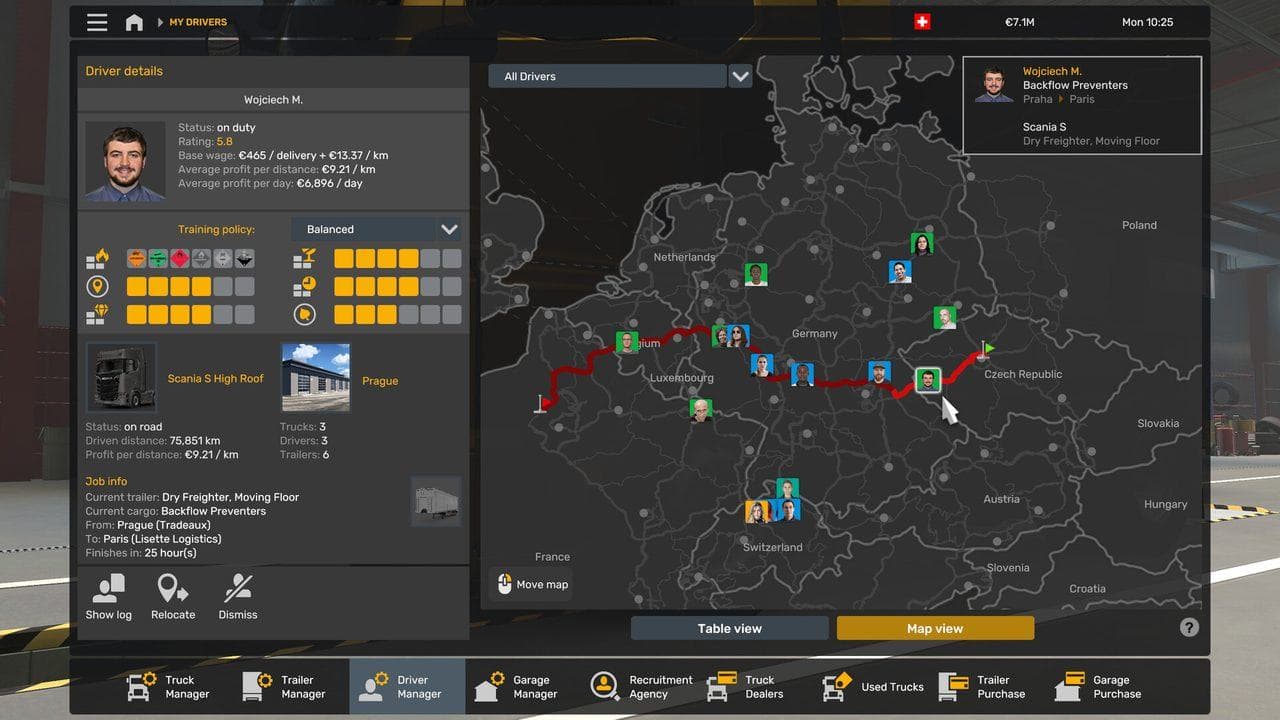 Updates
ETS2 Update Checklist: What to Do Before and After Updating
Use this ETS2 update checklist to back up profiles, test mods, check version notes, and avoid breaking a save after a major game update.
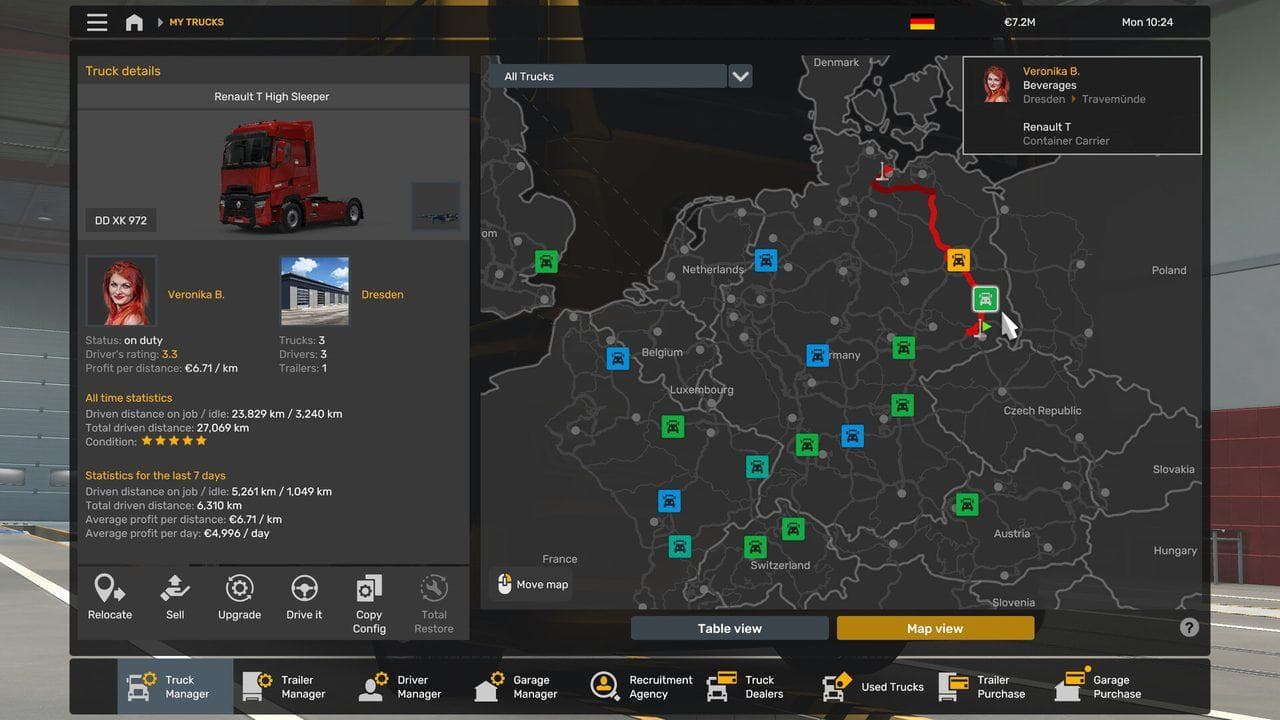 Updates
How to Check ETS2 Version in Game and Steam
Check your installed ETS2 version in game and confirm the Steam branch before troubleshooting mods, TruckersMP, ProMods, or updates.
UpdatesETS2 Mods Not Working After an Update: Safe Fix Checklist
Fix ETS2 mods after a game update without damaging your main profile: backup first, check versions, test clean, then re-enable mods slowly.