Community guide
How to Connect World of Trucks to ETS2
Connect World of Trucks to ETS2 safely, understand Steam registration, profile linking, External Contracts, and common account blockers.
UpdatedJul 4, 2026
Read8 min
LevelBeginner
ByETS2Hub
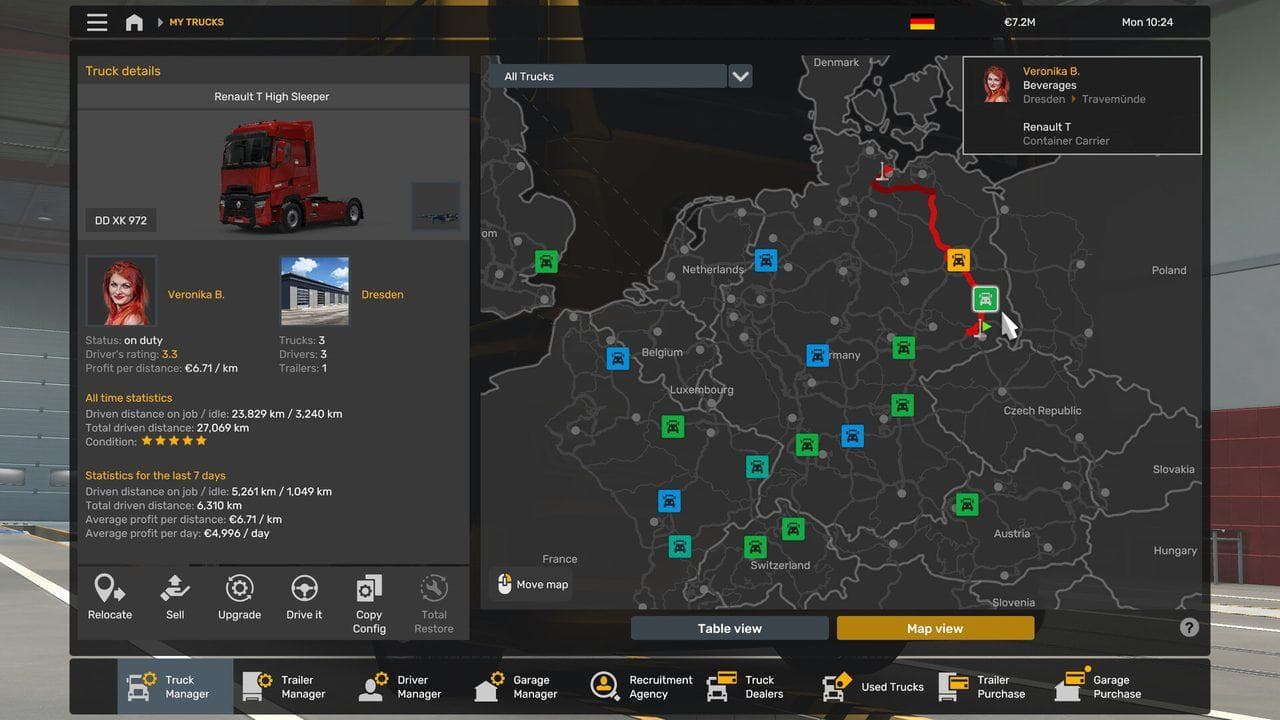
Quick answer
To connect World of Trucks to ETS2, create or sign in to a World of Trucks account, register through Steam if you own ETS2 on Steam, then link the profile from the game. Use the official World of Trucks site for account steps, keep your email correct, and check support if the profile will not link.
World of Trucks is SCS Software's online layer for ETS2 and ATS. In ETS2, most players connect it for External Contracts, online profile features, event tracking, and official community goals.
This guide focuses on account connection. If you already connected the account and want to understand the jobs, read World of Trucks External Contracts Explained.
Account Paths
Use the official World of Trucks site:
If you own ETS2 through Steam, use the Steam registration path on World of Trucks instead of entering old retail-code details. The create-account page notes that Steam owners should register through the Steam route.
Before You Link the Profile
Prepare first:
- Confirm you are signed into the correct Steam account.
- Confirm ETS2 is installed and has been launched.
- Use the email address you can access.
- Avoid linking while offline or while Steam is in a bad state.
- Back up your profile if you are also changing mods or versions.
World of Trucks account problems are usually easier to solve when Steam, email, and profile state are clean.
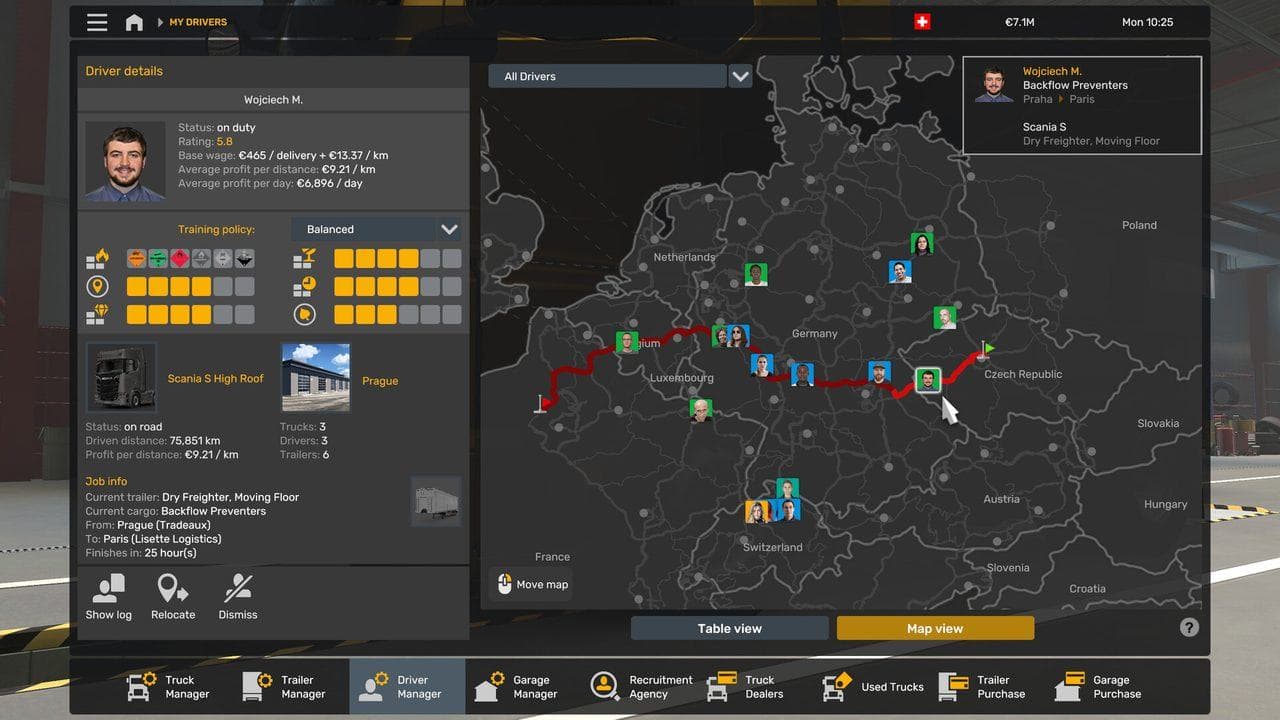
Basic Connection Flow
Typical flow:
- Create or sign in to your World of Trucks account.
- Use the Steam registration option if your ETS2 copy is on Steam.
- Open ETS2.
- Choose the profile you want to link.
- Use the in-game profile connection option.
- Confirm the account login.
- Check whether External Contracts appear.
Keep a normal Freight Market job available too. That gives you a fallback if the online service is unavailable or you only want offline progress.
Common Blockers
| Problem | Check |
|---|---|
| Account email cannot be verified | Use an email you can access; World of Trucks support notes unverified accounts can be deleted after a waiting period |
| Steam registration does not work | Confirm you are on the correct Steam account and use the official Steam registration path |
| External Contracts do not show | Check account link, internet, ETS2 version, and official service status |
| Wrong profile linked | Create or use a clean profile before connecting |
| Event goals missing | Check the official events page and SCS announcements before assuming an event is active |
Profile Strategy
Use a clean profile if you care about reliability:
- One main offline career profile.
- One modded profile if you run heavy map or economy mods.
- One online-friendly profile for World of Trucks or multiplayer checks.
This separation makes troubleshooting simpler. If External Contracts disappear, you can compare a clean profile against your modded one.
What To Read Next
After connecting, read World of Trucks External Contracts Explained. If you are preparing for online driving, pair it with ETS2 Multiplayer Guide and How to Back Up ETS2 Profiles and Saves.
Read next
Continue through the next task instead of jumping to a random tag page.
CommunityWorld of Trucks External Contracts Explained for ETS2
Understand World of Trucks External Contracts in ETS2, how they differ from Freight Market jobs, and what the 2026 event pause means.
 Community
World of Trucks Seasonal Events Guide
How ETS2 and ATS World of Trucks seasonal events usually work, including account setup, external contracts, limited-time destinations, and reward planning.
 Multiplayer
ETS2 Multiplayer Guide: Convoy, TruckersMP, Rules, and Safe Profiles
Learn the safest way to start ETS2 multiplayer, including Convoy vs TruckersMP, version checks, profile safety, rules, and first-session setup.