Setup guide
ETS2 Steam Workshop Mods Guide: Subscribe, Load Order, and Safe Testing
Use ETS2 Steam Workshop mods safely with backups, version checks, small test batches, load order habits, and update troubleshooting.
UpdatedJul 1, 2026
Read8 min
LevelBeginner
ByETS2Hub
Quick answer
To use ETS2 Steam Workshop mods safely, back up your profile, subscribe to one or two mods at a time, enable them in Mod Manager, check game-version compatibility, test a short delivery, and remove problem mods before adding more. Avoid untrusted executable installers and unauthorized paid-content access claims.
Steam Workshop is usually the easiest place for beginners to start with ETS2 mods, but it still needs care. Subscribe slowly, test in small batches, and protect your profile before changing trucks, maps, traffic, UI, or economy behavior.
This page is a narrow support guide for the broader ETS2 Mods Guide and Safe ETS2 Mods Guide.
Safe Workshop Setup
- Back up your profile.
- Subscribe to one or two mods.
- Launch ETS2.
- Open Mod Manager.
- Enable the mods.
- Check for warning messages.
- Load a test profile or safe backup.
- Drive a short route before using your main career.
If a mod causes a crash, disable the newest mod first. Do not add ten more mods before finding the cause.
Which Mods Are Safer For Beginners?
| Mod Type | Beginner Risk |
|---|---|
| Paint jobs | Usually lower risk |
| Sound mods | Usually moderate risk |
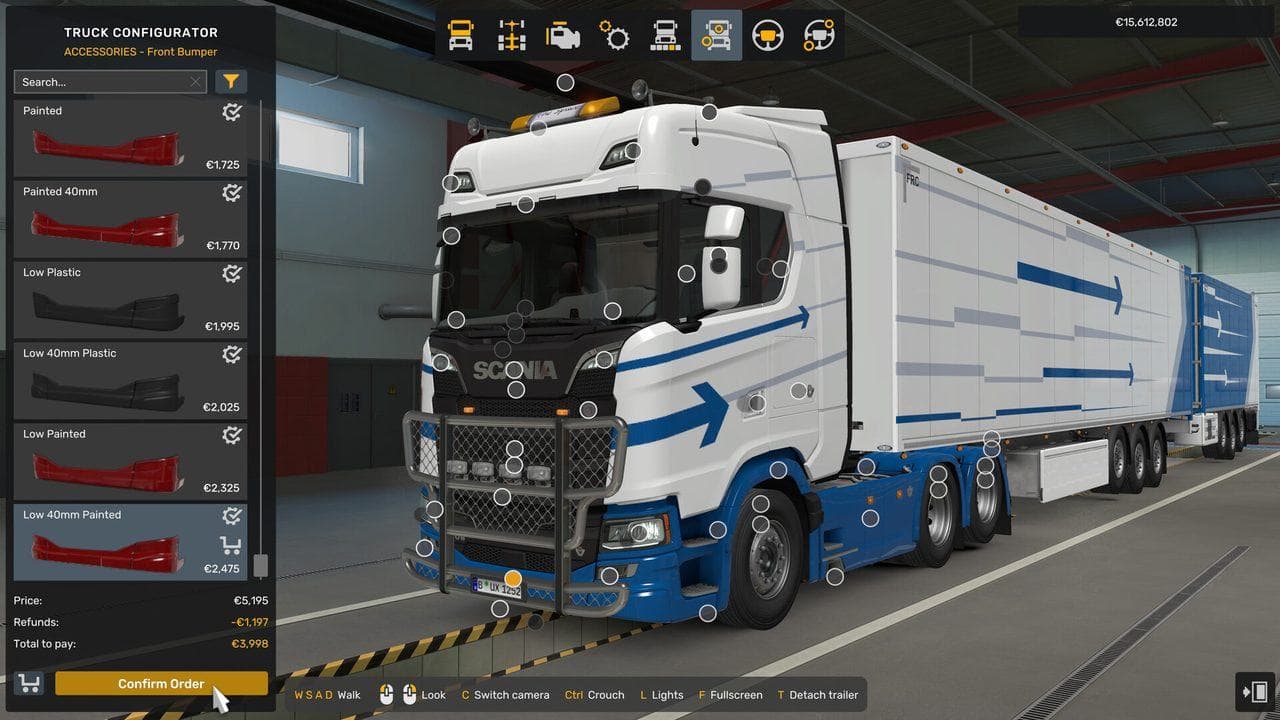
| Truck accessory mods | Moderate risk if parts attach to owned trucks |
| UI mods | Can break after interface updates |
| Traffic mods | Can affect performance and AI behavior |
| Economy mods | Can change career balance |
| Map mods | Highest risk because they often depend on exact game and DLC versions |
Start with lower-risk mods. Save map and economy mods for a separate profile.
Load Order Basics
Load order matters most when two mods change similar systems. A simple beginner rule is:
- Keep map mods and their required files together.
- Keep compatibility patches near the mods they patch.
- Put UI or sound mods above or below only when the author tells you to.
- Do not guess a complex load order for a huge mod list.
Read the Workshop description. Good authors usually explain required DLC, supported ETS2 version, and recommended order.
After ETS2 Updates
After a major ETS2 update:
- Check the latest version guide.
- Read Workshop comments and update notes for each important mod.
- Disable high-risk mods before loading a valuable profile.
- Test a short route.
- Re-enable mods gradually.
As of July 1, 2026, ETS2Hub tracks ETS2 1.60 as the stable update line. SCS is also testing 1.61 features in an experimental beta, so do not assume every Workshop mod is ready for beta builds.
Downloads To Avoid
Avoid executable installers from unknown sources, unauthorized paid-content access claims, and pages that pressure you to install extra software. ETS2Hub covers safe mod use, not unsafe download hunting.
Common Workshop Problems
| Problem | Try This |
|---|---|
| Game crashes after enabling a mod | Disable the newest mod and test again |
| Mod appears but does nothing | Check required DLC, version, and load order |
| Profile will not load | Restore a backup and test with fewer mods |
| FPS drops | Disable traffic, weather, graphics, or high-detail vehicle mods first |
| Truck parts disappear | Sell or remove modded parts before unsubscribing |
What To Read Next
Before changing a profile that matters, follow How to Back Up ETS2 Profiles and Saves. If an update is coming, use the ETS2 Update Checklist.
Read next
Continue through the next task instead of jumping to a random tag page.
SetupETS2 Mods Guide
A practical ETS2 mods guide covering safe mod categories, Steam Workshop, load order basics, profile backups, update checks, and downloads to avoid.
SetupSafe ETS2 Mods Guide
A safe ETS2 mods guide covering backups, Steam Workshop, profile separation, update compatibility, TruckersMP version checks, and what downloads to avoid.
SetupHow to Back Up ETS2 Profiles and Saves
Back up ETS2 profiles and saves before updates, mods, TruckersMP, Steam beta branches, or config edits, then restore a clean copy if needed.